Get tasks out of your head without getting distracted by organizing.
The Braindump strategy is designed to help you quickly capture everything on your mind. Instead of adding tasks one by one, you can open a dedicated dialog to type out a list of to-dos, select categories, and even add due dates or duration estimates on the fly.
How to enable
To enable this strategy, go to ☰ → Features/Strategies → Braindump.
How to use
Once enabled, you can access the Braindump dialog from the Sidebar, Skinny Sidebar, Bottom Menu (depending on which option you choose after enabling it) or the header of your Master List. You can also press Tab+Space.
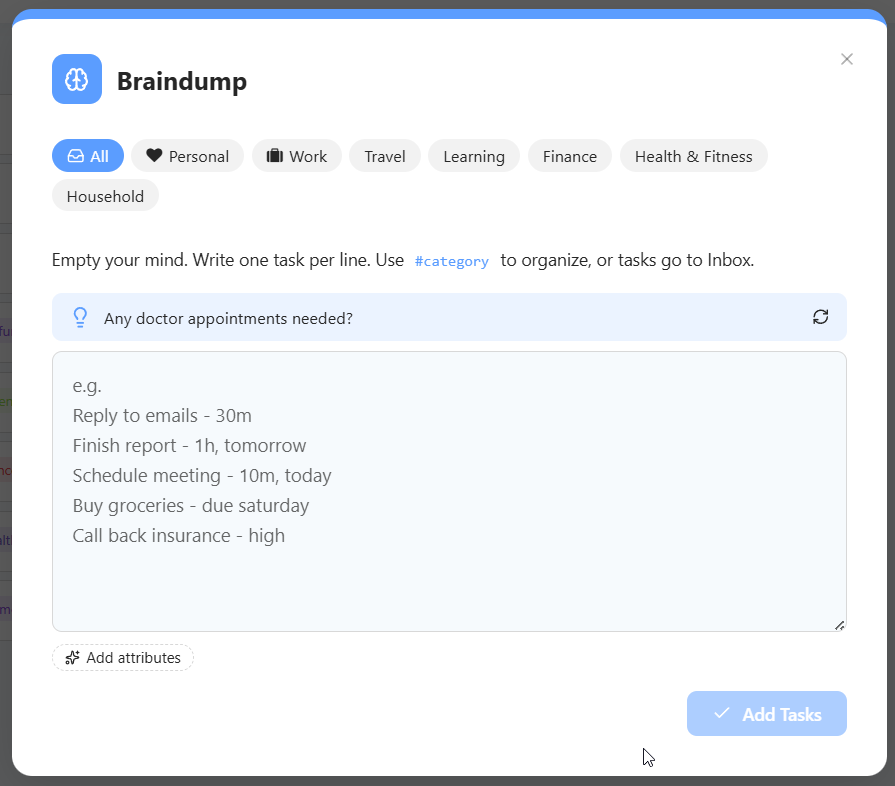
1. Select a Category (Optional): At the top of the dialog, you will see buttons for your main categories (e.g., Personal, Work, Finance). Clicking one of these will ensure that all the tasks you type below are automatically added to that category. If you leave it on All, tasks will go to your Inbox by default. To switch categories without the mouse, hold Tab and press the left or right arrow keys. Tab + down arrow opens a category's subcategories, and Tab + up arrow goes back.
2. Type your tasks: Simply type your tasks into the large text field. Press Enter to start a new line for each task.
3. Add details as you type: Just write them anywhere in the line, no dash needed. For example, Call mom tomorrow #Family *p1 15m creates a task scheduled for tomorrow in your Family category, with a priority and a 15 minute estimate. You can also set a due date like due friday or due 3d. Category and label names with spaces work too. Not sure what to type? Click Add attributes and then click any attribute to add it to the line you're on.
4. Add your tasks: Click Add Tasks. If you turn on Preview before adding in the Braindump settings, the button says Preview Tasks and you can review, edit or remove tasks before they are saved.
Send everything to Orbit
If you use Orbit, click Add to orbit below the text box to put every task from this braindump in your Orbit. Marvin remembers your choice for next time.
Recent braindumps
Your last 15 braindumps are saved. Click the history icon at the top of the dialog to see them, and click one to bring its text back.
Who is this for?
This feature is perfect for users who want to quickly capture everything on their mind without getting distracted by organizing. If you feel overwhelmed, doing a braindump is a great way to get everything out of your head and into Marvin quickly.