You can sort lists in many different ways. Click the ⋯ menu at the top right of a list and choose Sort. Click an option to pick a direction, for example Shortest first or Longest first.
In your day list, a click sorts the list once (your tasks are reordered), and Shift+click adds a sort that stays on. You can swap this with the cog icon in the Sort menu.

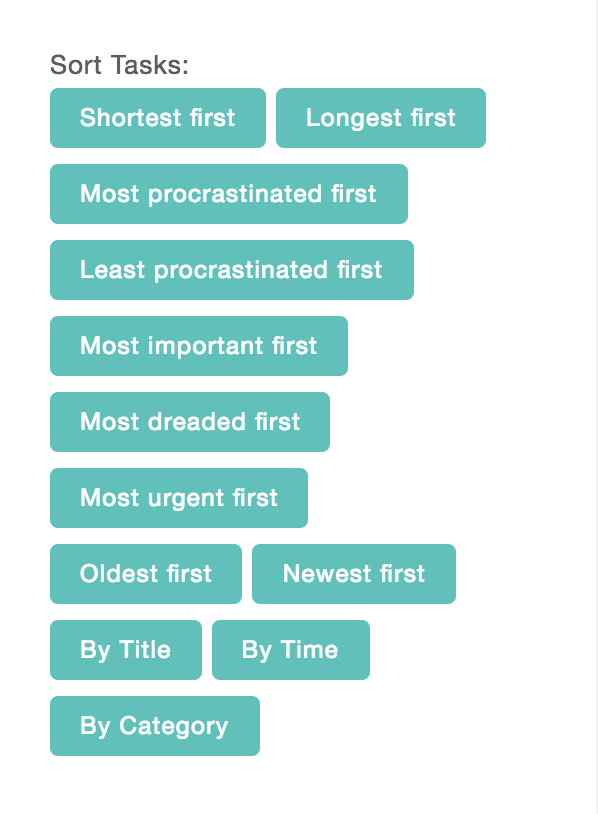
Duration
This sorts items by their time estimate: Shortest first or Longest first.
Delayed
This sorts items by how many days they have been delayed. You see it when the Delay Count feature is on.
For tasks this means that every day since you first scheduled an item into a day (gave it a "do date") and then didn't do it counts as a day delayed.
Priority
This sorts items based on their priority level (colored stars).
Red stars have the highest priority, then orange stars, then yellow stars and finally no star.
Frog
This sorts tasks based on their frog level. The bigger the frog the more you dread a task.
Deadline, Due date and Urgency
Deadline sorts by due date or end date. Due date sorts by due date only. If you use the Urgency feature, Urgency sorts by how urgent items are.
Created
This looks at how long ago you have created a task or project.
Title
This sorts your list alphabetically looking at the title of the task.
Time of day
If your tasks include a specific time (e.g. "Call mom 2pm") it will sort your tasks by time. This can be useful to create a chronological order for your daily list.
Category
This sorts tasks by where their category or project sits in your Master List, not alphabetically.
This is helpful if you want to group related tasks (tasks from the same project for example) together.
Label
In the "Labels" strategy settings, you'll find a list of your labels. You can drag and drop them to change their order. When you sort by label, it sorts tasks according to their labels based on the order of the labels in your strategy settings. So if you had labels @A, @B, @C, and @D (in that order), and sorted by label, then all tasks with @A would go before tasks with @B, and all tasks with @A and @B would go before tasks with @A and @C.
More options
Depending on the features you use, you may also see Size, Scheduled, Worked on, Start date, End date, Planned, Reward and Suggested.