Everyone's brain works differently, so Marvin doesn't force one way of working on you. Most of what Marvin can do comes as features you switch on and off. Your workflow is simply the set of features you use and how you use them.
[IMAGE] The Features screen showing a few feature cards with their on/off switches.
Start small
It's tempting to turn everything on at once. Don't. New users who switch on a dozen features on day one usually end up overwhelmed.
A better approach:
Use Marvin with the basics for a few days: categories, a braindump, and a short list for Today.
Notice what gets in your way. Do you procrastinate? Forget due dates? Feel overwhelmed by a long list?
Turn on one feature that helps with that one thing.
Live with it for a while before adding the next.
Your setup will change over time, and that's the point.
Three ways to find features
Start from a problem
On the welcome cards at the top of Today, click Solve a problem. Pick the challenge that sounds like you, for example "Long lists overwhelm me" or "I don't know what to do first". Marvin explains what can help and shows the features that fit, each with a switch to turn it on.
[IMAGE] The "What challenge do you face?" screen, then a challenge open with its suggested features and switches.
The welcome cards gone? Click the ? icon (Help & Resources) in the sidebar and choose Getting Started.
Browse all features
Open the Main menu (☰ in the sidebar) and click Features, or press S. Features are grouped by what they help with. Switch any feature on to try it and off again if it's not for you. Many features also have settings you can open from their card.
Try a ready-made workflow
A workflow turns on a set of features that work well together, in one click. It's a quick way to try a whole way of working.
Open the Main menu and click Workflows.
Browse the groups:
Starters: simple setups made for Marvin, such as Solid Workflow, a gentle day-planning setup that combines to-do lists and a calendar.
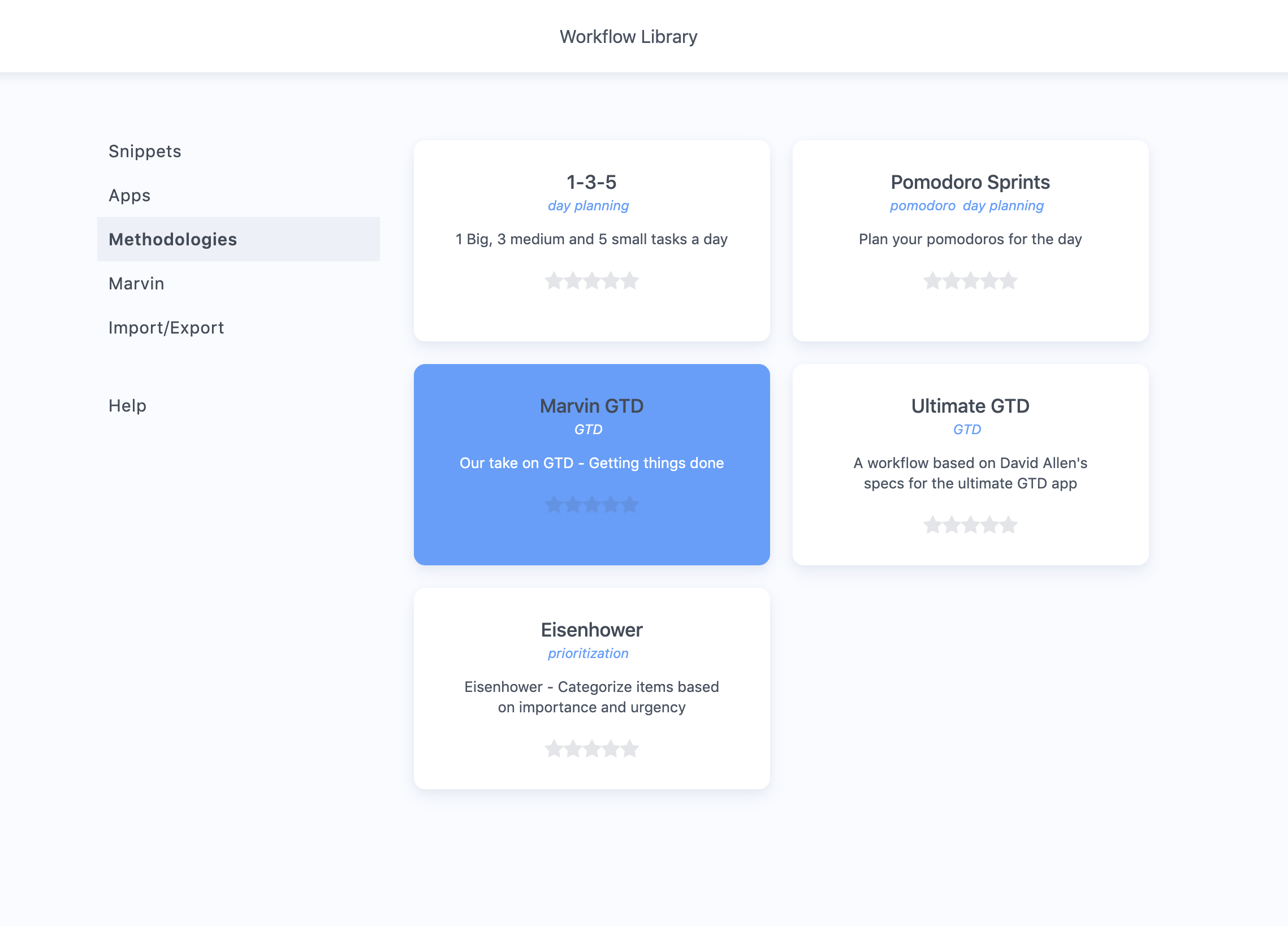
Methodologies: well-known methods like GTD, 1-3-5, Eisenhower, Autofocus and Final Version.
Familiar apps: setups that feel like Todoist, Things, TickTick and others, handy if you're switching.
Click a card to see what it turns on.
Click Activate this workflow to try it.
[IMAGE] The Workflow Library with the Starters group visible and one workflow open, showing "What it turns on" and the Activate button.
Don't like it? Open it again and click Deactivate to remove what it added.
Good to know: activating a workflow can change more than features, for example your sidebar, layout and colors. If you've already customized Marvin a lot, look at what it turns on first.
Your features on mobile
The mobile app doesn't have every feature yet. See the Mobile App section for what's available on your phone.
You can set up Marvin to accommodate many different workflows.
How to modify workflows
Turning on and customizing the strategies will allow you to set up alternative workflows easily and quickly. You can switch up your workflows and experiment anytime.
Experimentation is encouraged! Read why.
If you want to try out a premade workflow or use that as a starting point head to the workflow library and turn on a setup or snippets there.
The default Marvin workflow
By default (when you have no strategies turned on) Marvin is set up for a basic day planning workflow.
The idea there is simple: you plan the next day by scheduling the tasks you want to get done into your day.
If you don't have a good workflow yet
Finding a workflow that works for you takes time. We will soon release a detailed guide on how to get there and host a webinar on this topic.
This workflow works great for most people and allows you to quickly identify productivity problems for which you can then try to find a targeted solution.
If you already have a great workflow
If you are a productivity veteran and have a system that works well for you, you can most likely mimic that system already in Marvin.
For most flexibility check out the "Smart List" strategy and "Custom Sidebar" strategy (or other strategies in the "lists" group).
If you want to mimic a specific app or method
The workflow library comes with a lot of different premade setups that mimic other apps and popular productivity methods (e.g. GTD, Ivy Lee, Eisenhower Matrix)
You can use these setups as a starting point to your own workflow or try out different ones to learn what works and doesn't work for you.
Reach out!
Have a specific workflow in mind, but not sure how to set it up?