Recurring projects are similar to recurring tasks but instead of creating tasks automatically, Marvin creates entire projects automatically for you based on a pattern.
Creating a recurring project
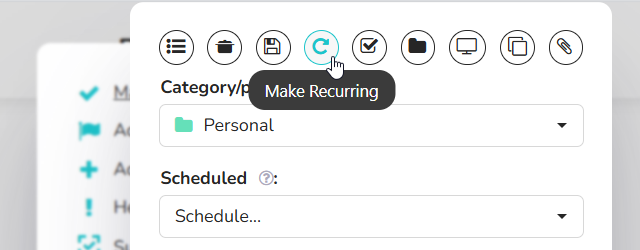
Open the main menu and click Recurring, then click Add Recurring Project. Or turn an existing project into a recurring one: right-click it and choose Make recurring (look under More if you don't see it).

Where do recurring projects show up?
Marvin will automatically schedule your recurring projects for you, so they will show up in the Today list like your recurring tasks or like any other task you've manually scheduled.
Your Master List and projects show each copy of a recurring project like any other project. The repeats themselves are listed on the Recurring Tasks screen (open the main menu and click Recurring). If you'd rather see the repeat instead of its copies, turn off Show the task, not the repeat in the Recurring Tasks feature settings.
How to automatically schedule tasks inside a recurring project
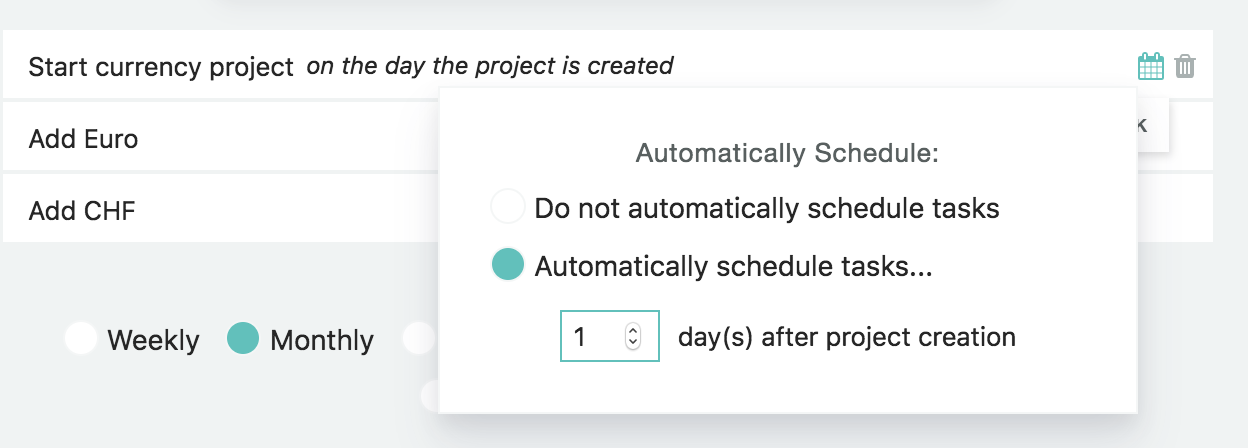
In the recurring project dialog, you can click on the schedule button of a task to have it automatically be scheduled based on the project creation date.
Can I see upcoming recurring projects ahead of time?
New recurring projects are created on their own day, so you see one at a time. To see upcoming ones in your calendar and planning views, open the recurring project settings and set Create occurrences to a number of days ahead. Recurring projects you made before this change keep creating copies ahead, the way they always did.
To change the default for all recurring tasks and projects, open the main menu and click Recurring, click the settings button at the top, and use Create occurrences ahead of time.