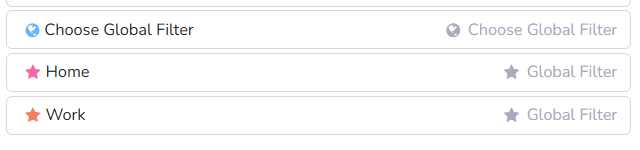
By default, all your tasks and projects are shown in Marvin. By using a Global Filter you can choose to hide all Tasks and Projects from one or more main Categories. This can be helpful, for example, when you're at Work and don't want to see any personal tasks, and vice-versa.
Creating a global filter
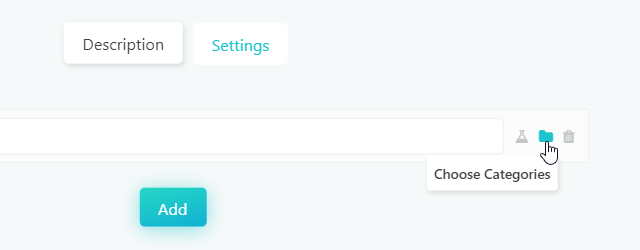
In the feature settings (☰ → Features → Global Filter) click Add Filter, give it a name and choose Main Categories or Advanced Filter. With Main Categories, all your categories are selected by default, so uncheck the ones you don't want to see. For example, if you want to see just the work-related stuff, leave only your work category checked.
With Advanced Filter you can be more precise. Type what to show under Show and what to hide under Hide, for example #Work or @urgent. Type # to pick a category, @ for a label, or * for other things like priority. For full control, use Advanced (RPN).
Activating a global filter
Once you're done creating your global filters, you can activate one from the Global Filter button in your sidebar, skinny sidebar or bottom menu. You can also add Global Filter to your main menu (☰). It isn't there unless you add it.
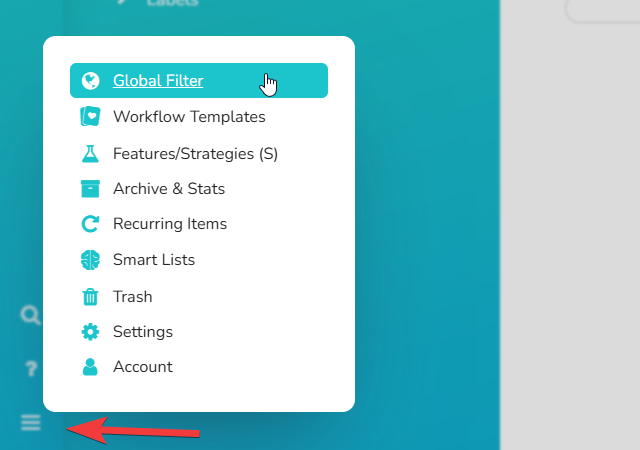
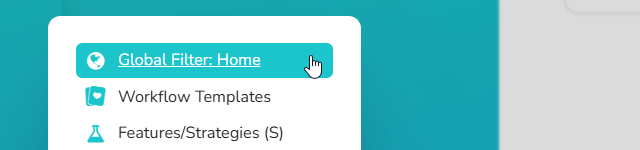
After you activate a global filter, its name shows next to the title of your Master List (click it there to switch filters) and in your browser tab title. You can turn off the tab title with Show in browser title in the settings.
Accessing Global Filters from the regular sidebar
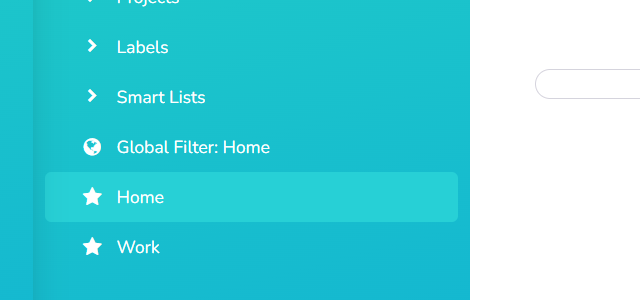
If you prefer not having to open the menu to activate a global filter, it's also possible to add a button for activating it to the regular sidebar: