When setting up your Smart Lists you can set up a default sort order for your list in addition to your filters.
So you can specify
what is shown in a list
in what order those items are shown
To have a Smart List sorted by default, click the Sort button in the Smart List dialog (next to Group by and Limit) and pick a sort option.
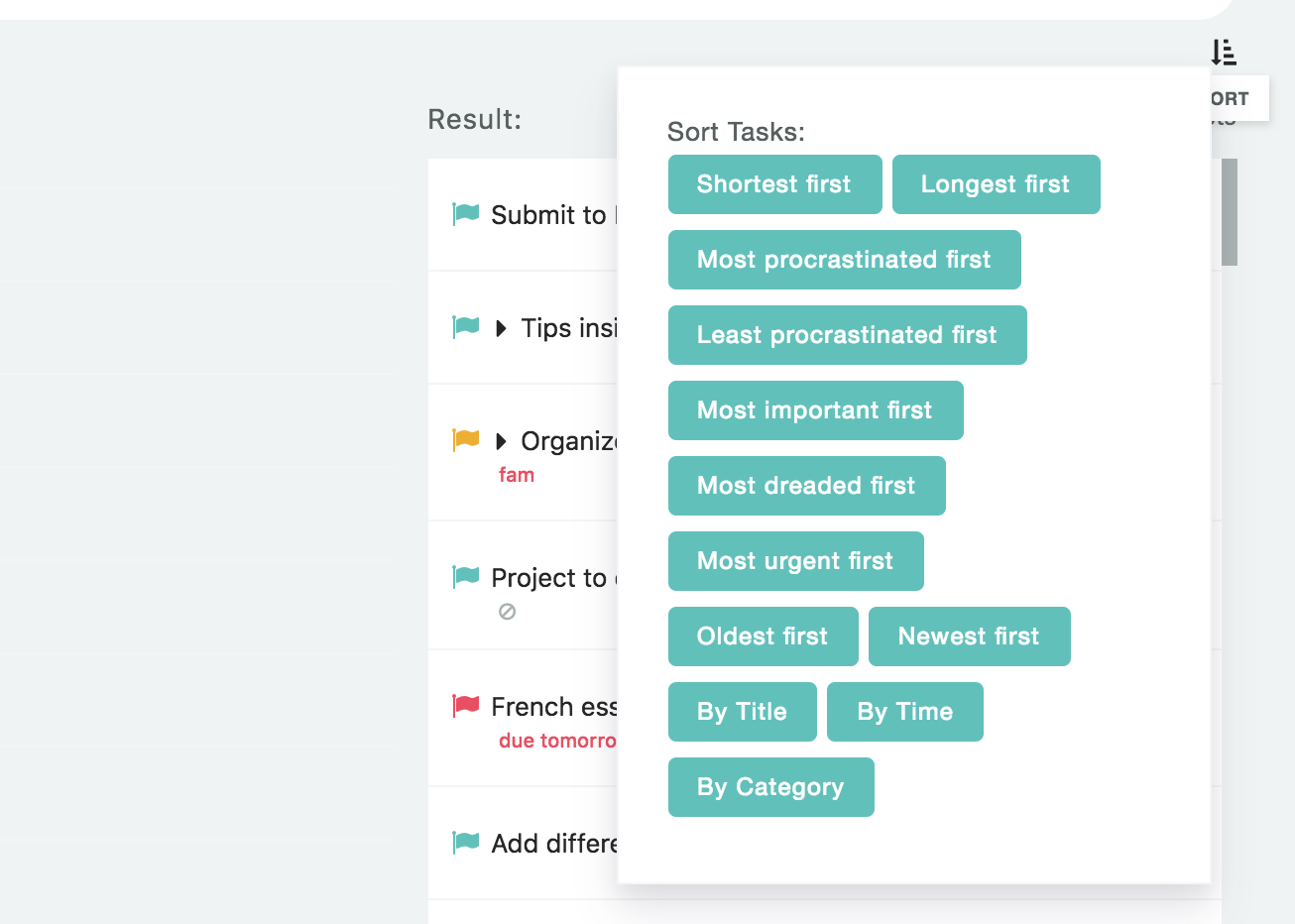
Your Smart List will then always be sorted the way you specified.
Example
You can create a Smart List that includes all tasks due within the next 20 days and then sort by Due date with Earliest due first, so the tasks that are due the soonest are at the top.