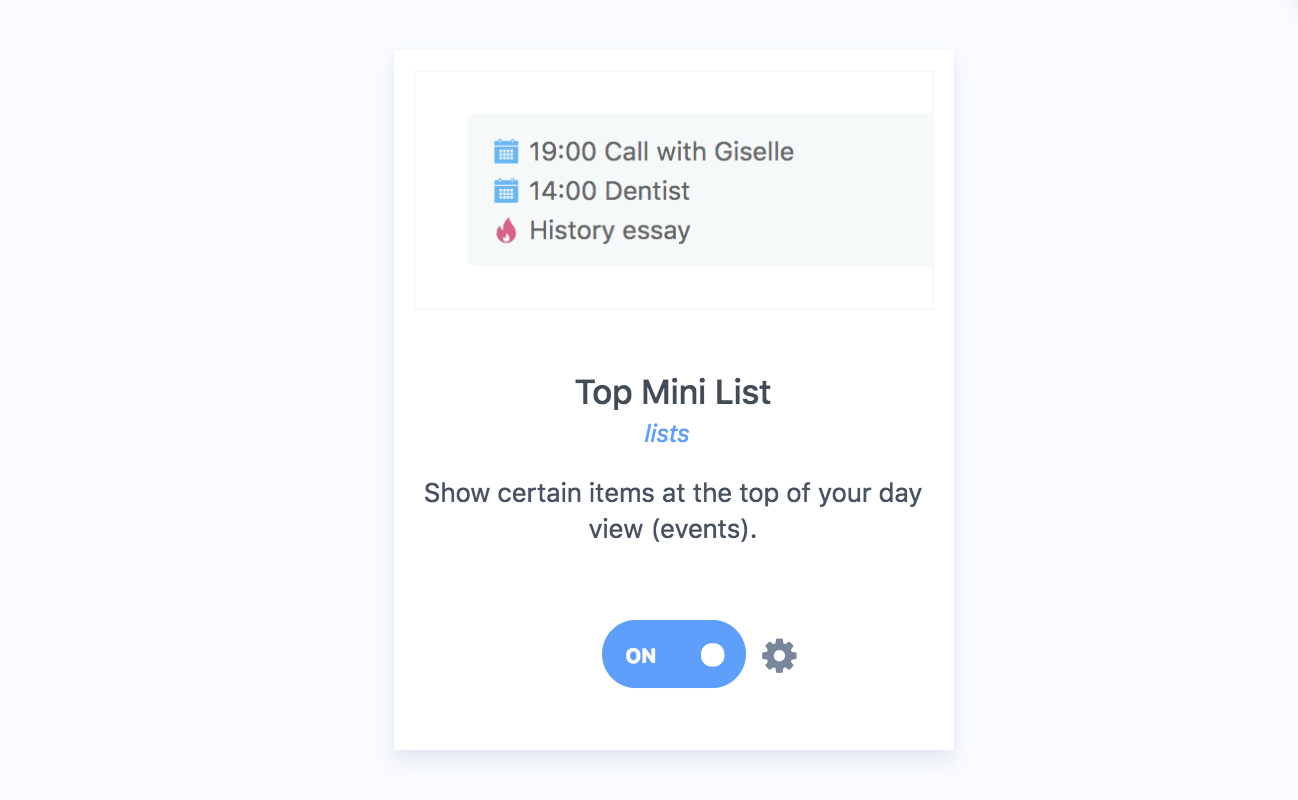
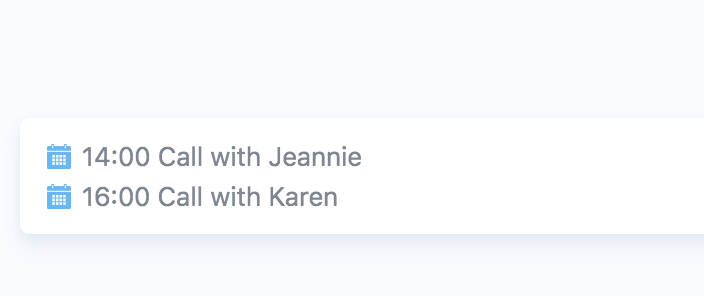
The top mini list strategy allows you to pick a Smart List that will display its items in a small box at the top of your day view:
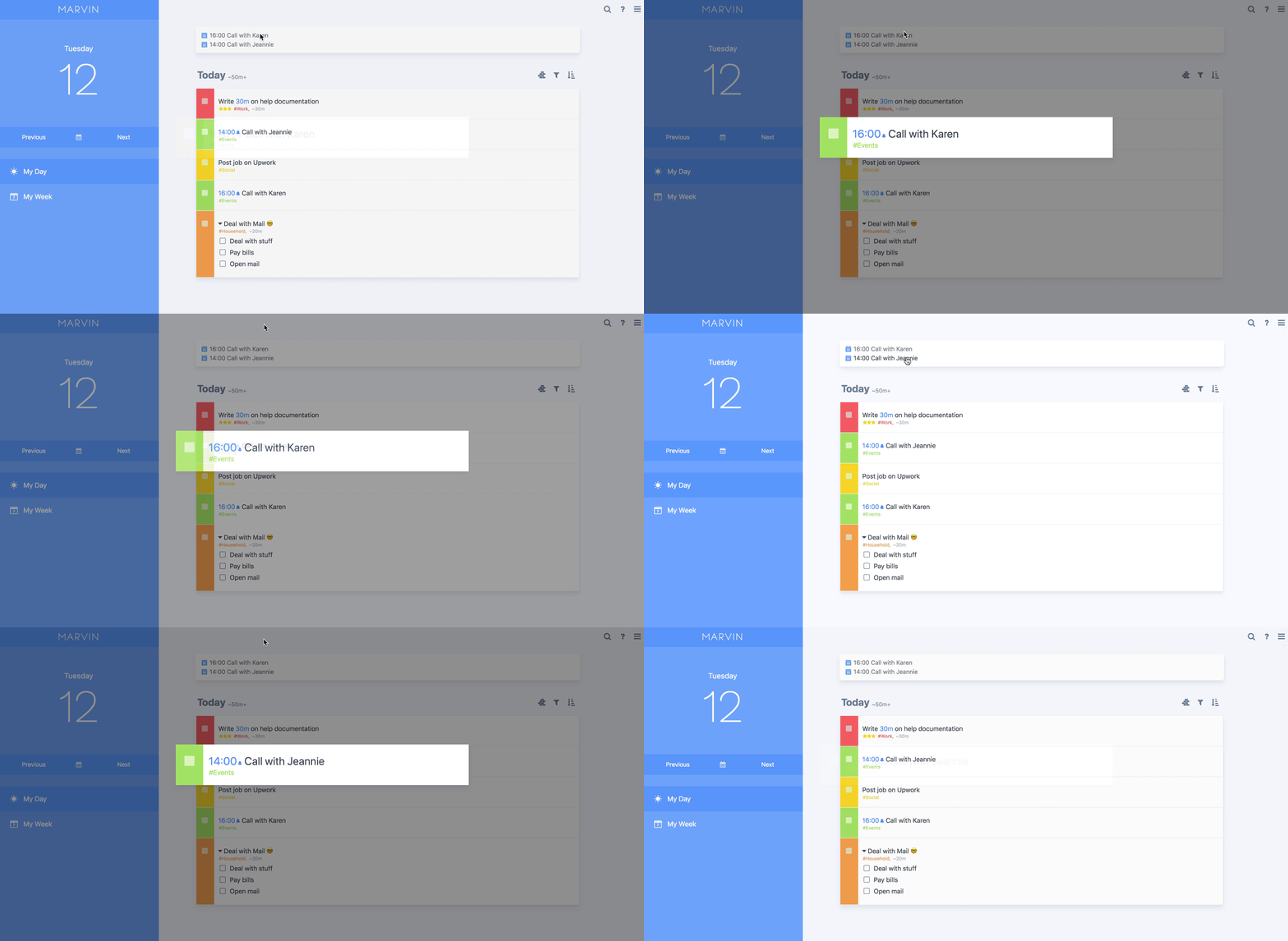
Clicking the items opens them up so you can interact with them:
Setting up the top mini list
Create the Smart List first. Then, in the Top Mini List settings, click Add new item and choose the list. You can add several lists, and each can have its own limit on how many items it shows.
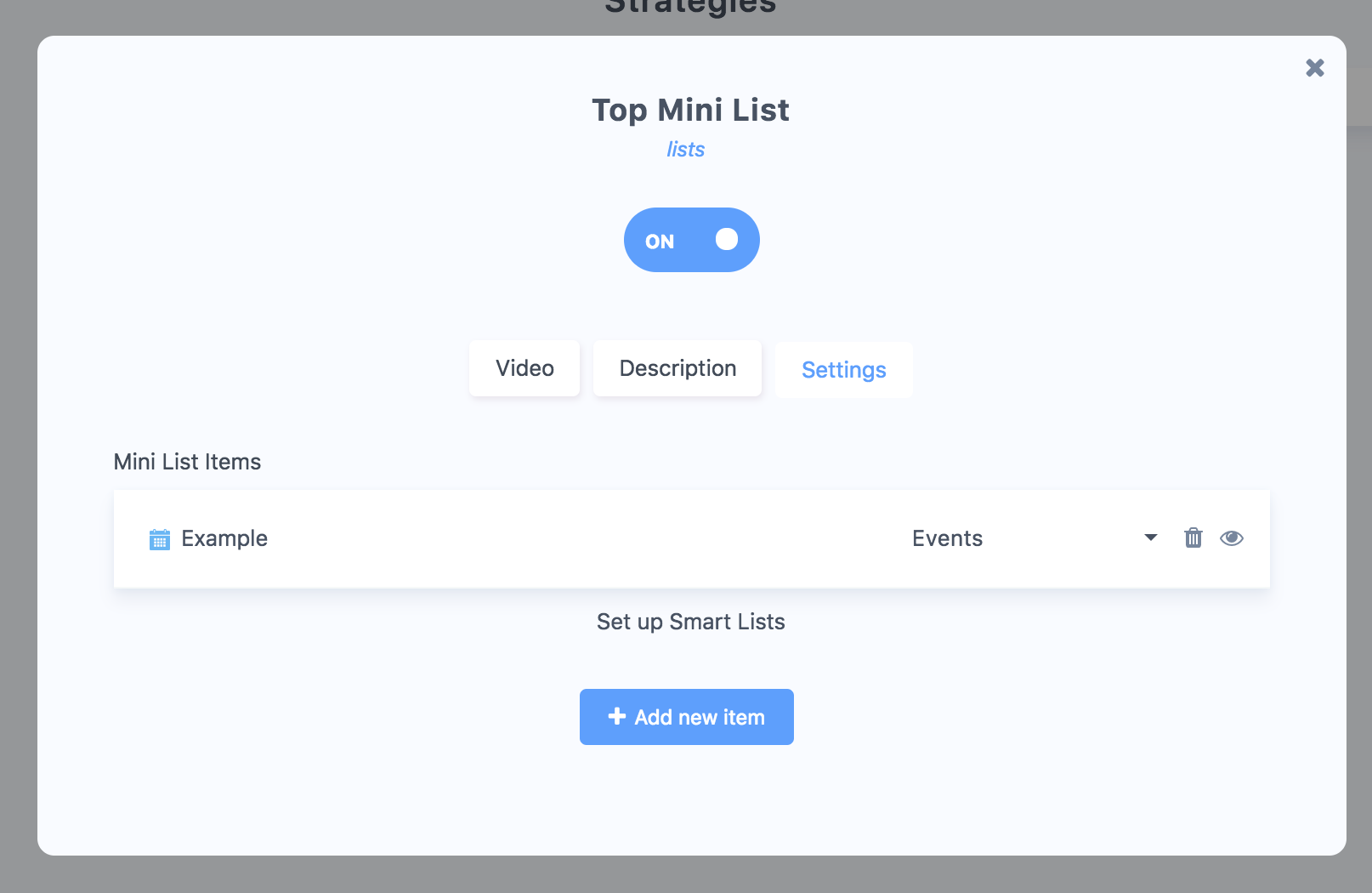
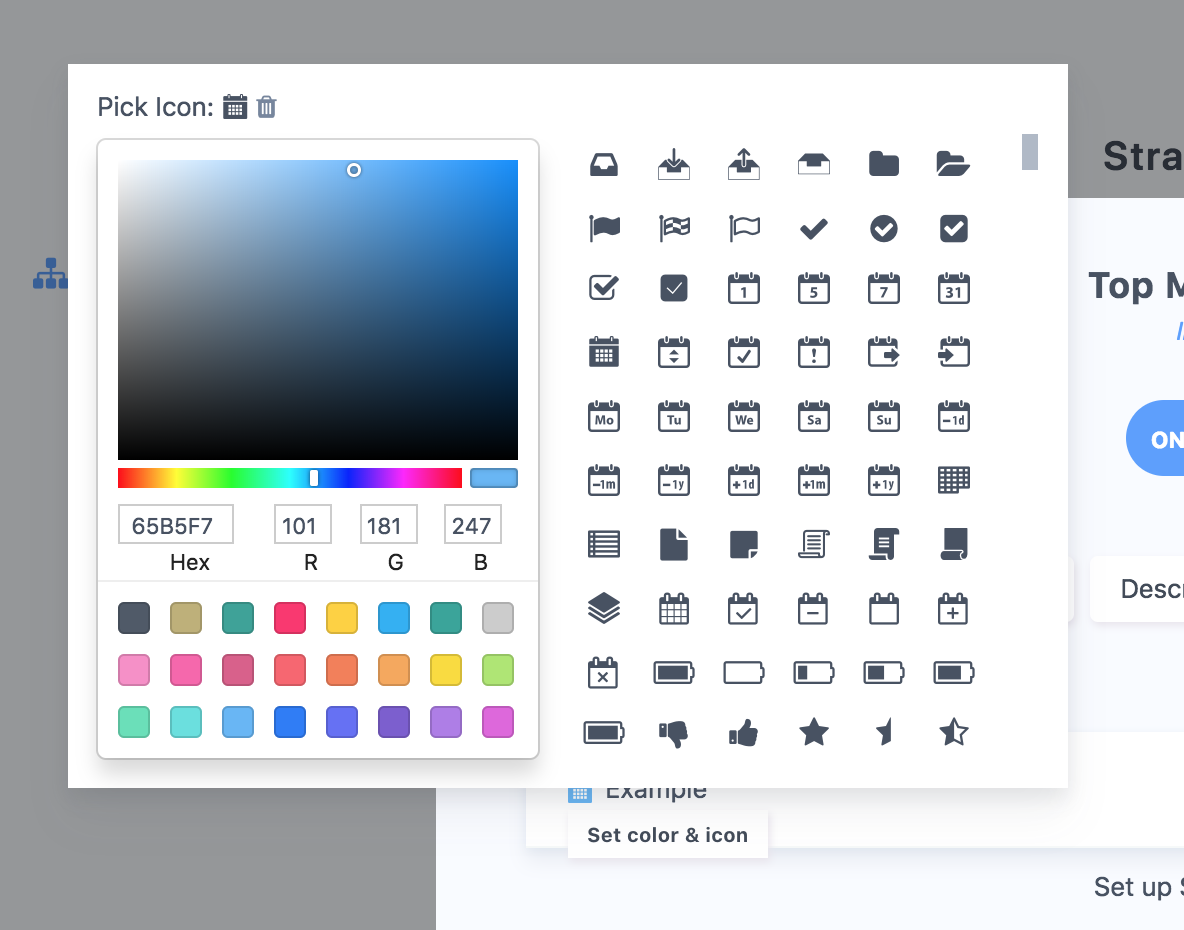
You can also choose an icon and a color for the icon that will appear on the left of the item (blue calendar in this case). Click on the icon to set this up:
Use cases
Showing events
This strategy can be used to highlight certain tasks from your today list, like events for example.
To do this, create a Smart List that selects events (either by category or label, depending on how you distinguish labels in your setup) and then adding this to the advanced Smart List filter at the very end, to show events for each day you are on:
scheduleDate selectedDate ==
Alerting you of upcoming deadlinesYou can also use the top mini list to alert you of items that need your attention.
You could create a Smart List with items that are due in the next week and make they are always top of mind.
Layout and click options
Layout: One list, Columns (each list side by side, when you have more than one) or Pills (one scrollable row).
Wrap into columns: with One list, split a long list into 2 or 3 columns. Web and desktop only.
Show due dates next to item titles.
When a task is clicked: open it in Single view or the Right panel.
When a project is clicked: Single view, Right panel or Main view.