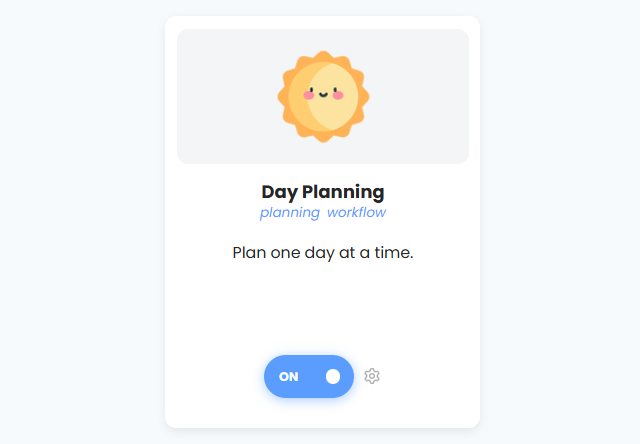
Day Planning helps you build a realistic list for today. Open the Master List sidebar (click the date on the left or press X) and drag tasks and projects into your day. While you plan, a capacity panel at the top of your day shows how much you have planned against the time you have left.
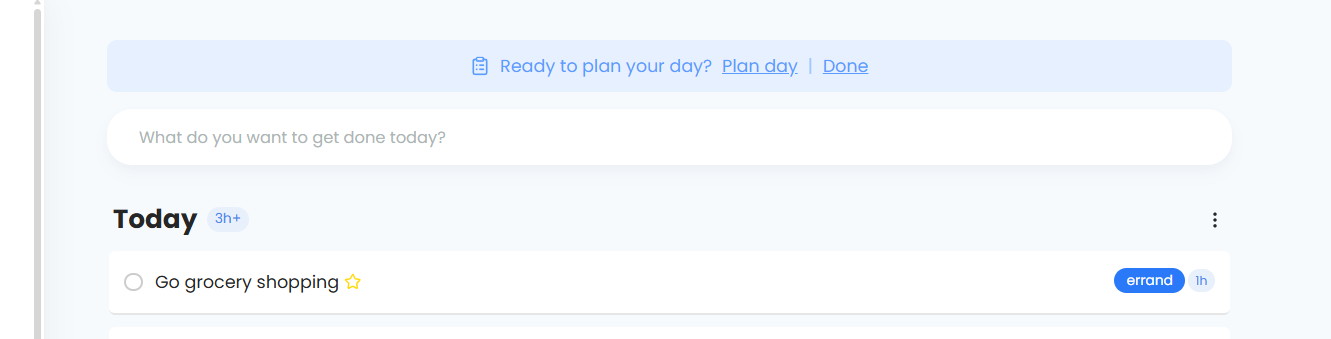
If you'd like a daily nudge, turn on Show plan day prompt in the Day Planning settings. You'll then see "Ready to plan your day?" with a Plan day button at the top of your day.
Available time & planning details (
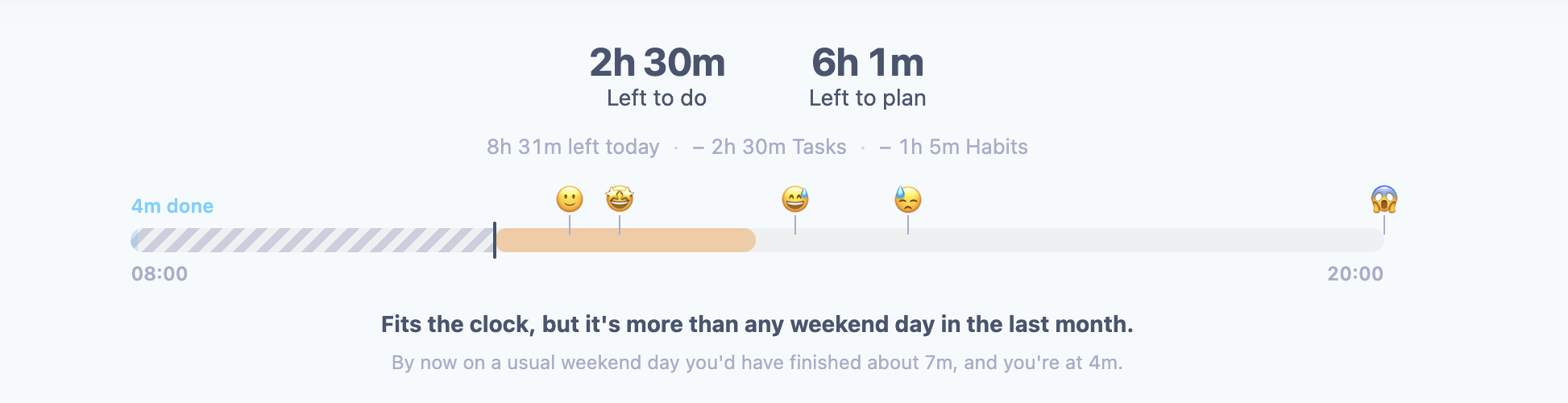
The capacity panel shows two big numbers:
Left to do: how much work is still open on today's list, minus time you've already tracked.
Left to plan: how much more fits before your work hours end. If you've planned too much, this changes to Over by.
Under that, a line shows the math: the time left today, minus Events still ahead of you, minus Tasks. Habits and bonus items can show there too. Hover any part to see details, such as how many tasks and projects are scheduled.
Tasks without a duration estimate count as 20 minutes and projects as 45 minutes. Bonus items are shown with a plus and are not counted against your day, unless you turn on Include bonus items in counts.
The bar below runs from the start to the end of your work hours. Events show as blocks on it, and a line marks the current time.
Emoji meanings
🙂 & 🤩: with Compare with your own days on, these mark a usual day for you and one of your better days, based on your completed work over the last 30 days. 😅 and 😓 mark 3 and 4 hours of focused work, a lot for anybody. Until you have at least three days of history, 🙂 marks 2 hours of focused work instead.
😱: the end of your work hours. Nothing more fits after this point.
Day Planning settings
Show capacity estimator: show or hide the capacity panel.
Include bonus items in counts
Subtract time already tracked
Compare with your own days
Warn when you overbook the day: shows a message once when what's left to do goes past the time you have left.
Show pace line: compares what you've finished so far with what you usually finish by this time.
Show left behind prompt: turn off the "Some to-dos got left behind" prompt.
Habits in the capacity panel: Shown apart, In the total or Ignored.
Capacity bar size: Regular or Large.
A filter for items that stay in your day but are not counted against your capacity.
Plan with: open planning in the Sidebar or the Drawer (shown when the plan day prompt is on).
Tip
Synced calendar events marked "free" never count against your day. You can also mark a whole calendar with Events don't take up work time in the Calendar Sync settings.
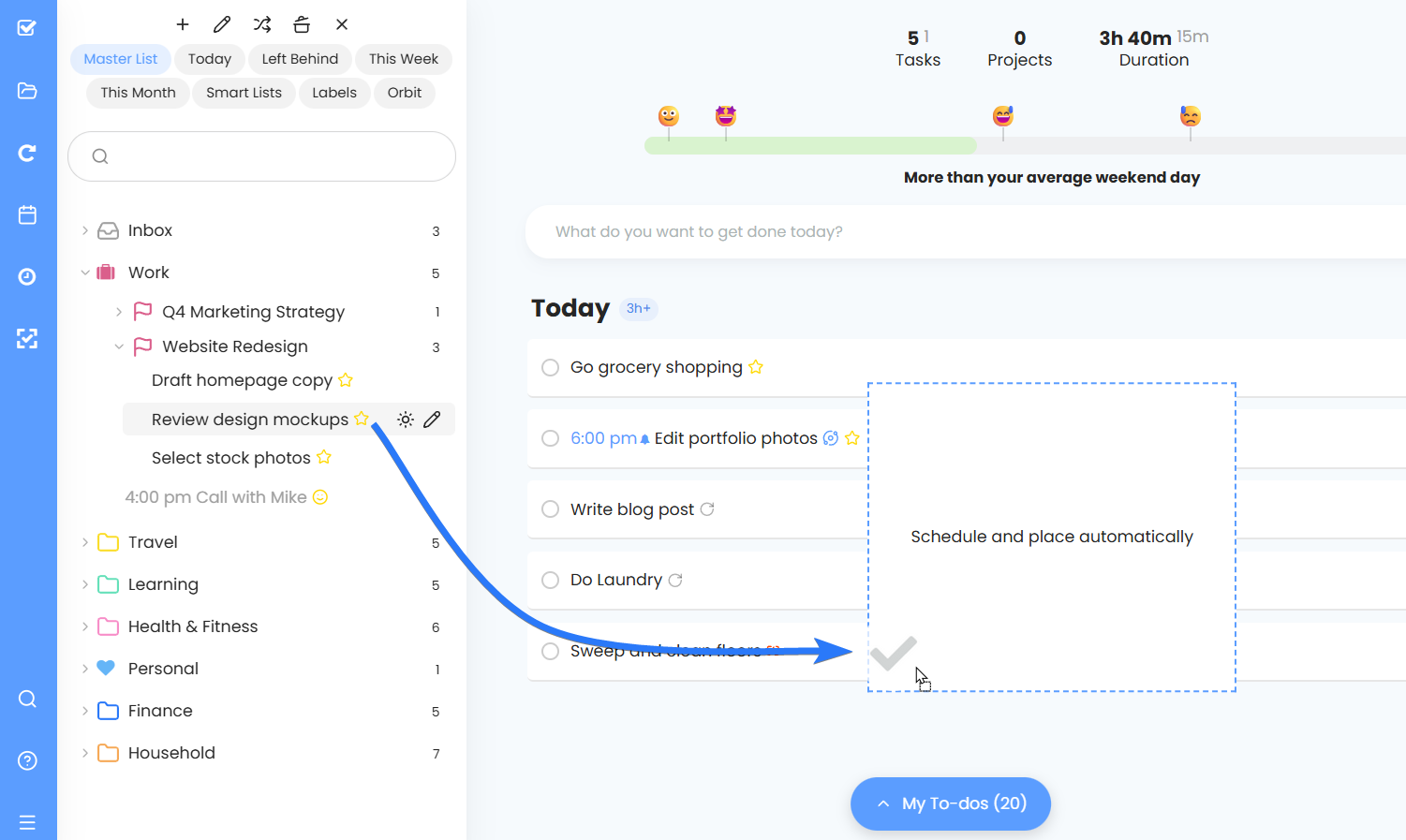
Scheduling tasks using the Day Planning sidebar
Clicking on the "Plan Day" button will open the Master List sidebar from which you can drag tasks into your day.
Accidentally dismissed the day planning? Here's how to bring it back!
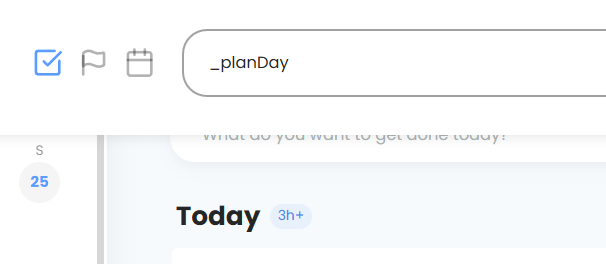
To bring the "Plan day" button and planning details back, open the Quick Add menu, type _planDay, and press enter as if you're creating a task. After you do that, restart the app and you should see the "Plan day" button again.
When you click Done on the prompt, a message appears saying it's back tomorrow. Click that message to bring it back right away.