Overview
The Mood Tracker feature lets you record how you're feeling throughout the day. Over time this helps you understand yourself better, notice patterns, and plan your days more realistically.
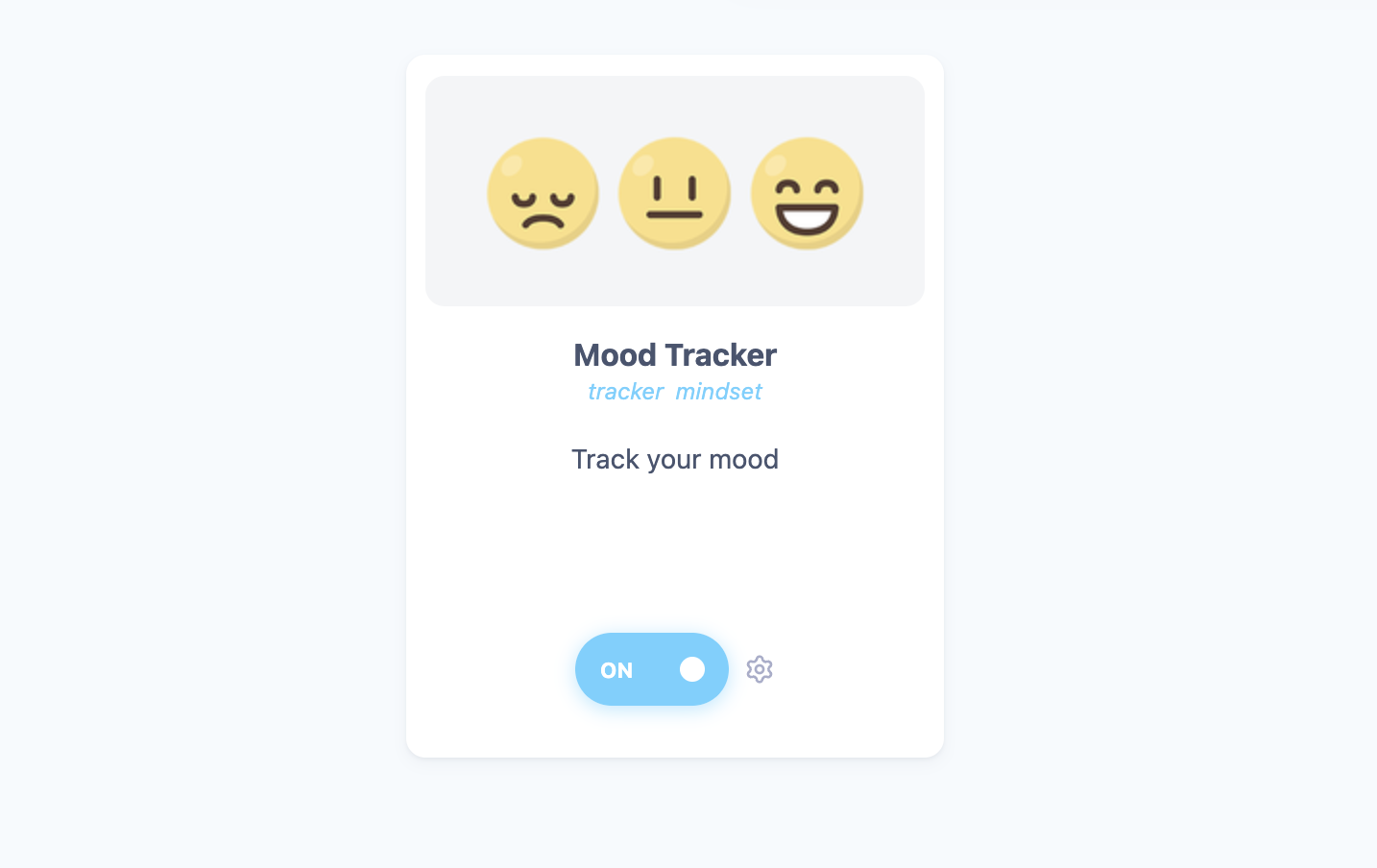
Turning it on
Turn on Mood Tracker in your Features list (in the Extras group). It works on both desktop/web and mobile.
Logging your mood
When you turn the feature on you will get asked how you want to access the log your mood modal. You can change this anytime later with the access tab in the strategy card.
On mobile, tap Mood in the bottom bar or open it from the sidebar.
You'll see How are you feeling? Tap a face (or a number, if you use the 1 to 10 scale). It's saved right away, no need to press save.
If Ask for emotions too is on, pick any emotions that fit. You can type to filter the list.
Optionally add a short note about what's going on.
After logging you'll see Logged at with the time, plus Undo and Log another. If you tap a different face right after logging, Marvin corrects your entry instead of adding a second one.
You can log as many moods per day as you like.
Tip: On desktop/web you can use the number keys to pick a mood, and Shift-click a face to record a mood for an earlier day.
Seeing your trends
Click Trends in the Mood Tracker to see the last 6 weeks, plus patterns showing what tends to come up on your better days and your harder days. On mobile, open Mood History from the top of the Mood Tracker screen.
Screenshot to add: Mood Tracker trends
Settings
Mood scale: 5 emojis (Terrible, Bad, OK, Good, Great) or 1 – 10. If you switch, your past entries stay on the scale you recorded them with.
Ask for emotions too: shows the list of emotions under the mood (on by default). Emotions you've already recorded are kept either way.