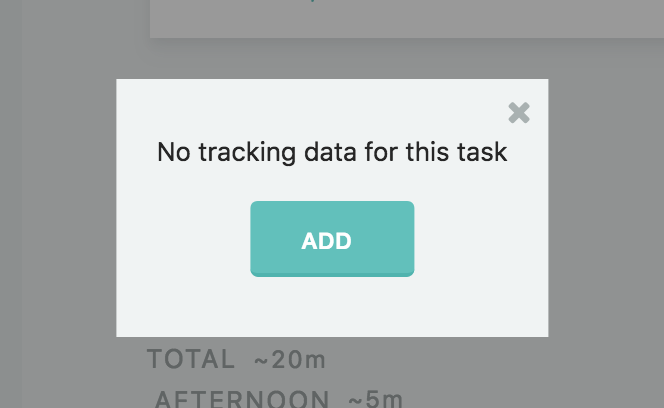
When using the time tracking strategy it can happen that you forget to start or end the time tracking so that you want to edit your data manually.
Editing completed tasks
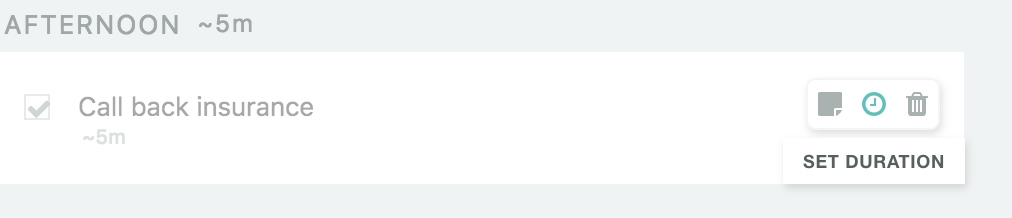
If a task is already completed, hover over it and click the clock icon to open the time track data table.
Editing an open task
To edit the time track data for an existing task, hold the shift key on your keyboard and click the "start" button on the right.
You can also click the tracked time shown under a task to open the table.

The time track data table
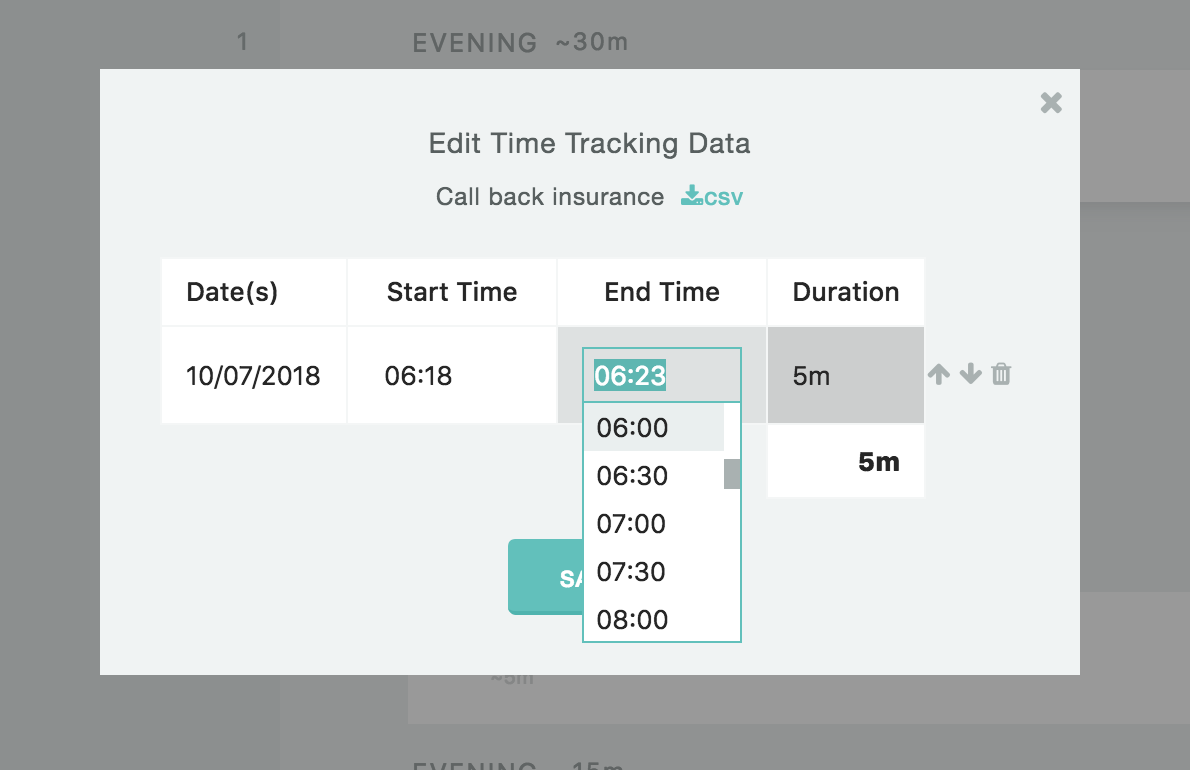
In the time track data table you can see each time time was logged on a task.
Editing a tracking session
The day of the logging is on the very left, followed by the start time, end time and time tracked for each tracking session. You can modify any of those data points.
Adding a new tracking session
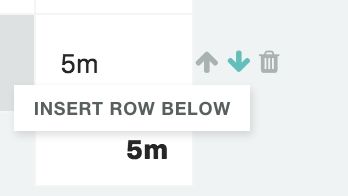
To add a new tracking session, click the + icon on the right of a row. To remove one, click the trash icon. Click Save when you're done.
If you have not logged any time on a task yet, you'll see No time tracked yet. Click Add Time to add a session.