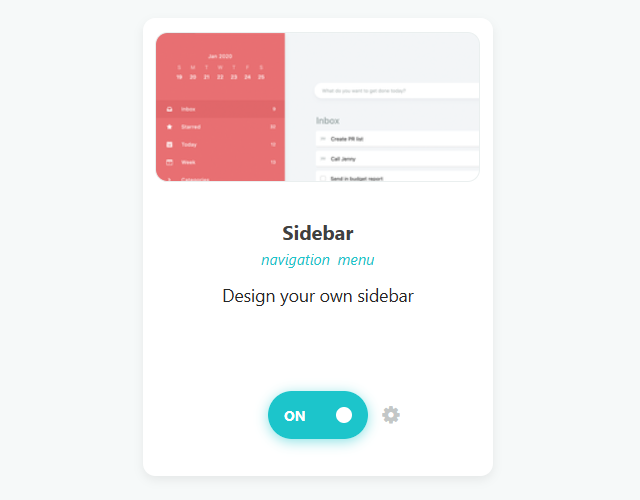
The Sidebar strategy lets you set up a customizable sidebar with buttons to quickly access various lists, views (like the calendar or week scheduler), start timers, or create new tasks with fast add buttons.
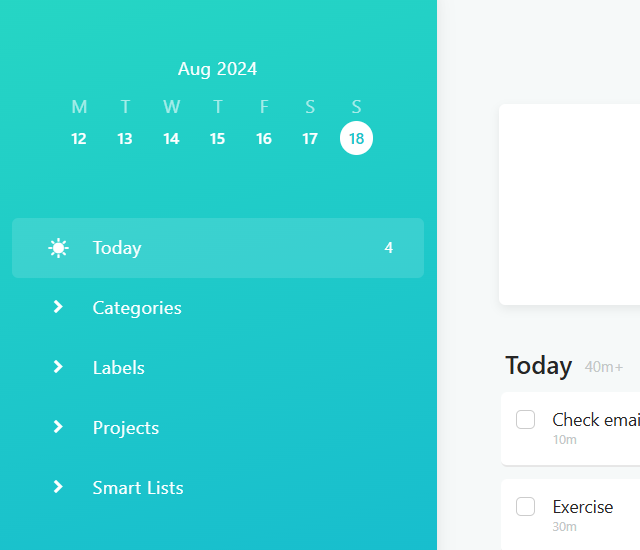
By default, when using Marvin's Solid Workflow, the sidebar is configured to show a weekly calendar for easy navigation between days, along with several dropdown lists:
Clicking any of these buttons will expand the menu, revealing all your categories, labels, projects, or smart lists.
Opening and hiding the sidebar
The sidebar can be opened in your day view with the keyboard shortcut "z" or by clicking the sidebar icon in the menu at the right (hover your mouse on the very right of the screen)
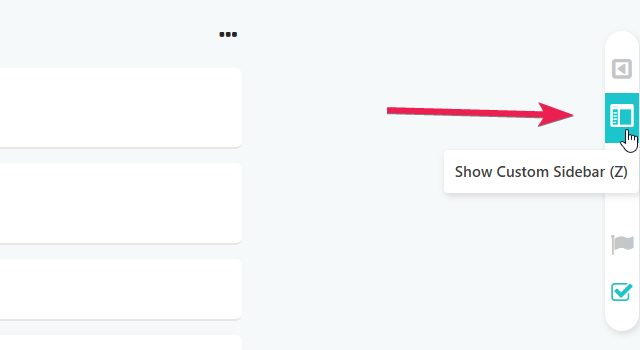
The sidebar will stay there (even on reload) until you close it with Z or the button on the right.
When the sidebar is closed, a small tab peeks out on the left edge of the screen. Click it to open the sidebar. If you don't want the tab, turn off Show sidebar tab in the sidebar settings.
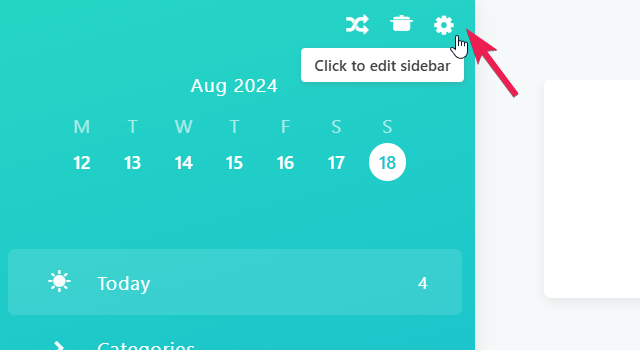
To set up your sidebar, go to ☰ → Features → Sidebar and click the settings icon, or click the cog icon (Customize Sidebar) at the top of the sidebar:
Screenshot to add: the top of the sidebar with the Customize Sidebar cog icon.
Adding new items
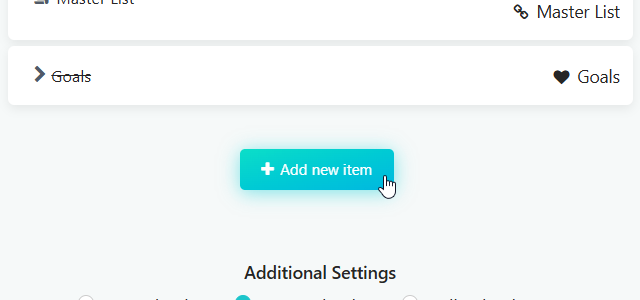
You can add new buttons to the sidebar by clicking on the "Add new item" button after which you'll be prompted to choose what you'd like to add to it.
You can also add Properties, an expandable list of your item properties like priority, urgency, weight and energy, and Most Important Projects (MIPs), an expandable list of your MIPs.
The following articles explain in more detail how different items can be added to the sidebar, and their purpose:
Hiding and deleting items
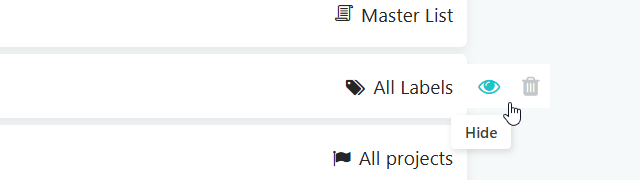
In case you'd like to remove or hide some of the default buttons from your sidebar, you can do so by hovering over the item you'd like to remove, and then you'll see "Hide" and "Delete" buttons on its right side:
Customizing icon and color
To customize the color and icon of items in your sidebar, just hover over the item and then click on the icon on the left side:
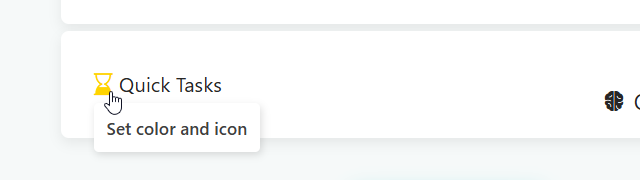
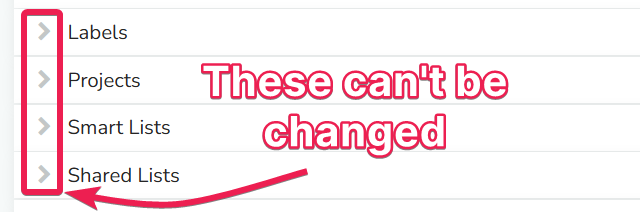
At the moment, icons and colors can't be changed for dropdown menu items:
Grouping items into a dropdown menu
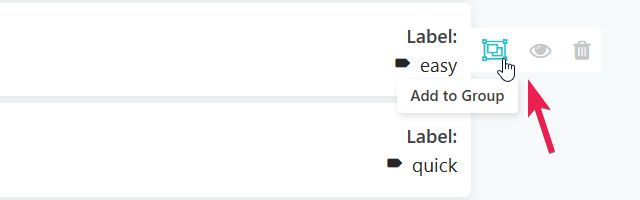
To create a custom dropdown menu, for example for your favorite labels, first add those labels to the sidebar using the "Add new item" button. After you added all of them, hover over one of them and click on the "Add to Group" button:
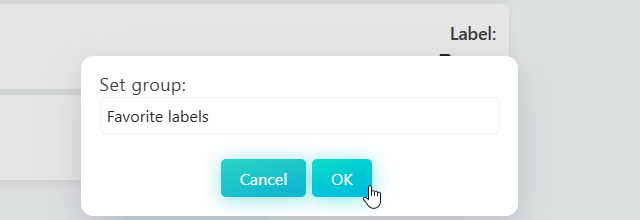
You'll then be able to create a new group, or add the list to an existing group:
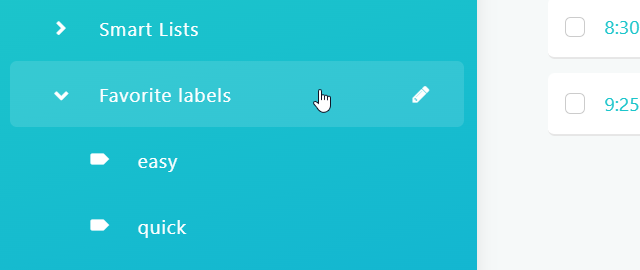
Once done, your dropdown menu will be displayed in the sidebar, and you'll be able to expand and collapse it:
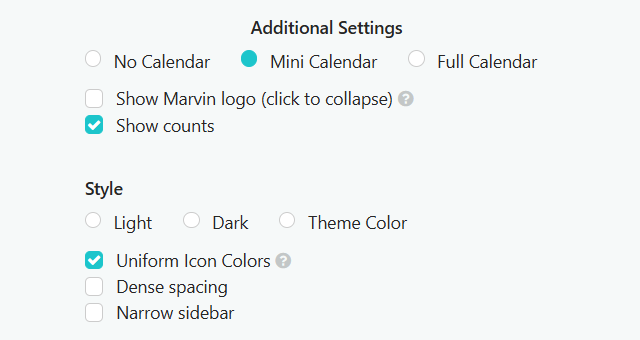
Additional settings
Below your list of items in the sidebar settings you can change the Background, Item Spacing and Calendar, and turn Show counts, Uniform Icon Colors, Narrow sidebar, Show sidebar tab and Bold Text on or off.
If I delete a smart list, project, or label from the sidebar, will it be deleted from the rest of Marvin?
Removing a smart list, project, category, or label from the sidebar will only take it off the sidebar, it won’t delete it from Marvin entirely.
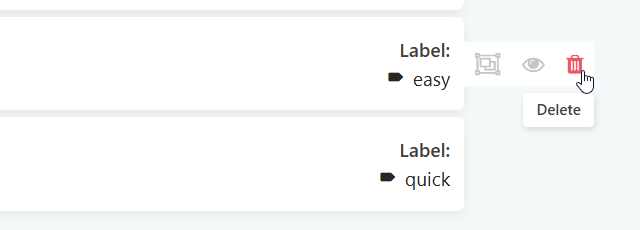
For example, if you added the "easy" label to the sidebar but no longer want it displayed there, clicking "Delete" will simply remove the button from the sidebar. The label will still be available in the Labels (Tags) strategy settings (☰ → Features/Strategies → Labels) and in the dropdown menu listing all labels.