Sometimes choosing which task to do next from a list of tasks is an arbitrary decision, meaning it does not really matter which task we do next from the given tasks.
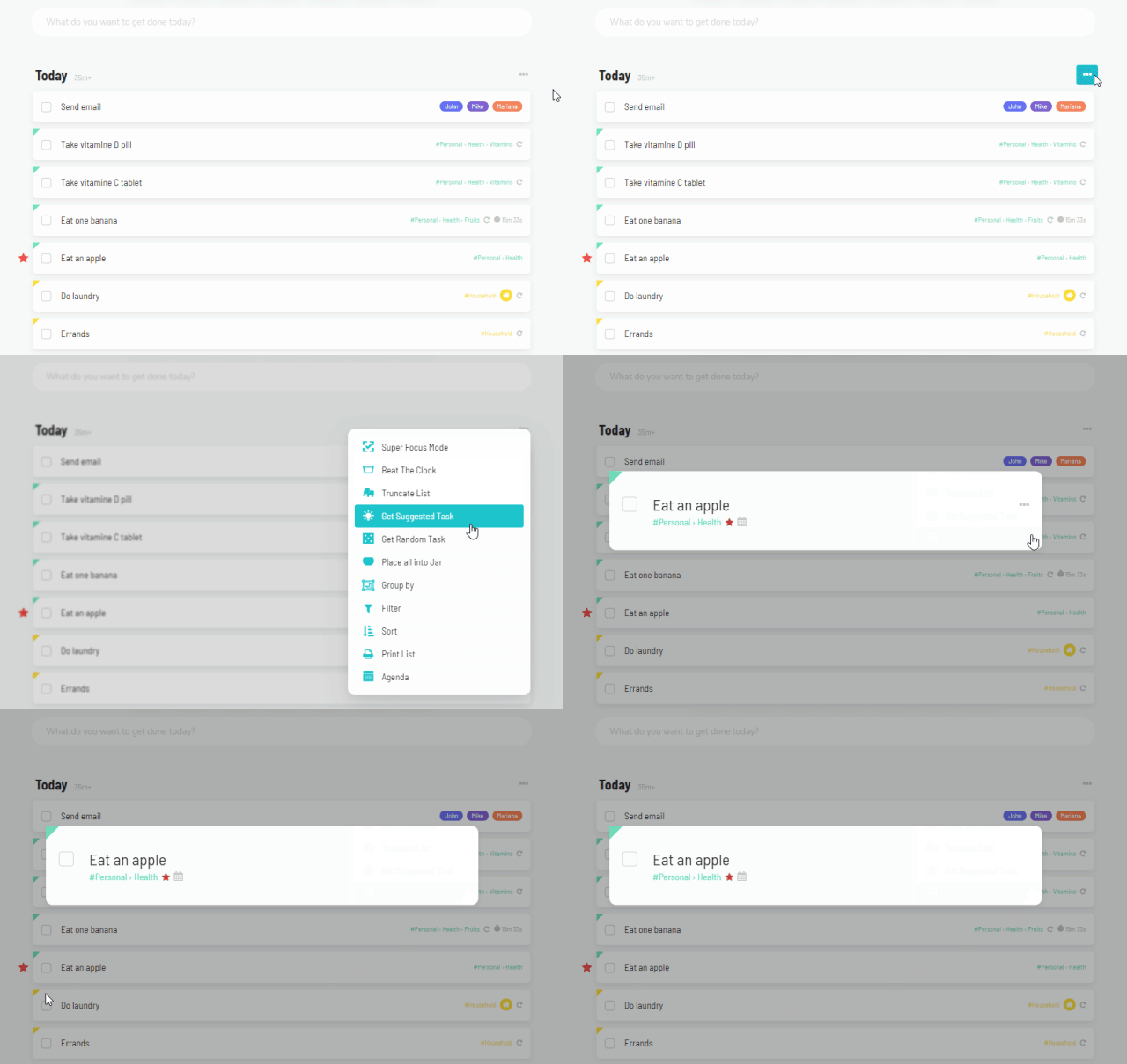
To get a random task, open the ⋯ menu at the top right of your list and click Random Task. You can also use this with any Smart List you have in your day view (via the custom sidebar or custom squares for example).
Clicking the button/icon pops up a random task from the list below:
How the task opens
In the strategy settings, use Task Display Mode to open the picked task as a Single Task or in Super Focus Mode. Turn on Auto-start time tracking on picked task to start the timer right away.
If instead of a random task you want a "suggested" task from Marvin, use the suggested task strategy instead.