Whether you want to track your time to accurately bill clients, report at work or just to get an idea of how long things take, Marvin has you covered with the time tracking strategy.
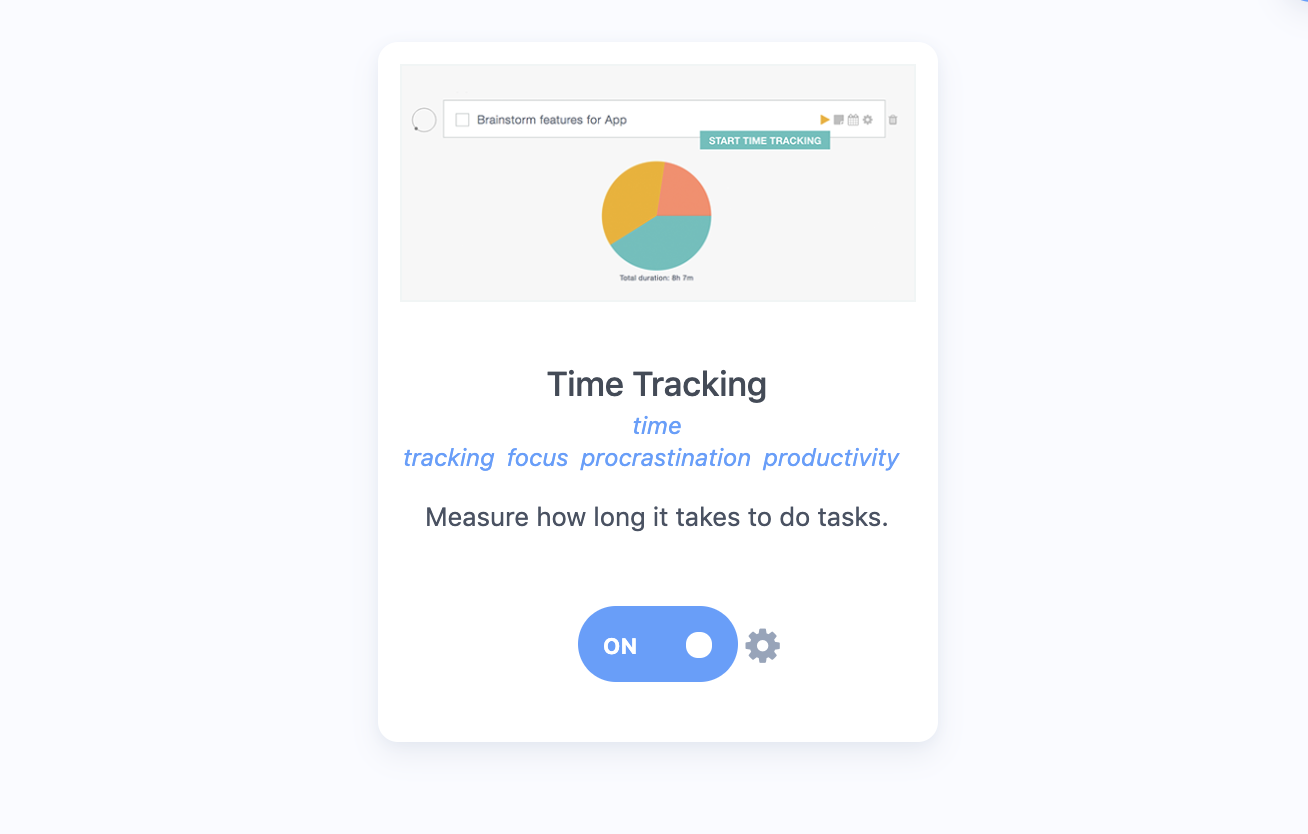
Head to the strategy page and turn this feature on:
How to track time on a task
When time tracking is turned on, each task will have a "play" icon to the right.

Clicking the play button starts time tracking for that task.
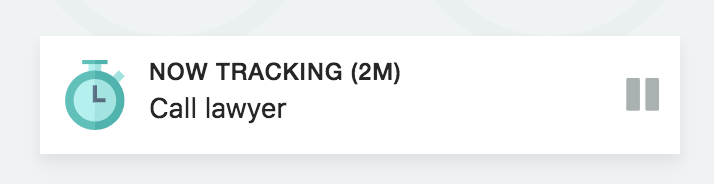
How to know which task is being tracked
There are two ways to know which task is currently being tracked.

2. There is a draggable box that indicates the currently tracked task. You can move this box anywhere on your screen. You can also disable the box entirely in the time track strategy settings.
Stopping time tracking
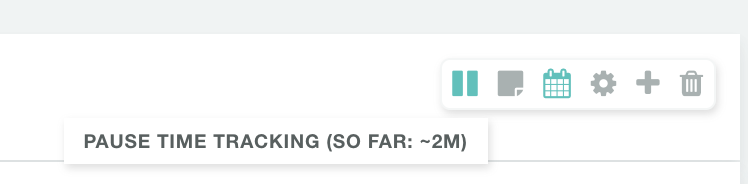
To stop the time tracking click on the "pause" icon either in the box or to the right of the task where you started tracking the task.
How to know how long you have been tracking a task
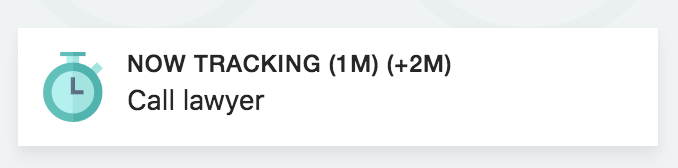
The box indicates how long you have been tracking a task. The first number (1m) refers to the current tracking session and the second one (+2m) tells you how much time you have previously tracked on this task.
So here the current session has only been going for 1m but there was another short session of 2m before that.
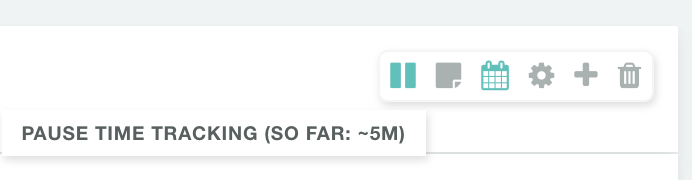
Hovering over the pause button shows you the total time (current and previous sessions) tracked so far on this task.
Editing time track data of an uncompleted task
It is easy to forget to track or stop tracking a task. To edit your time track data on a task that is not complete yet, hold shift and click on the "start" icon.
A dialog will open up that allows you to edit any tracking data.
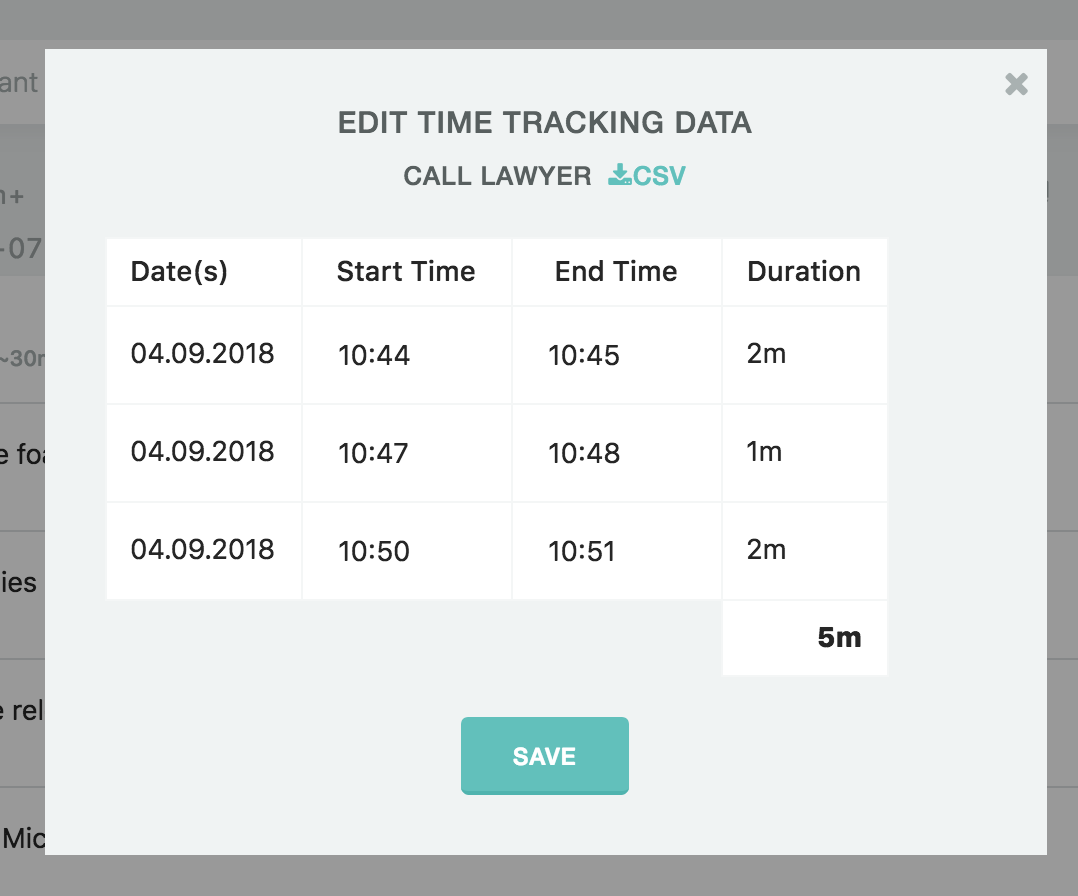
To add another tracking session, click the + icon next to a row. If the task has no time tracked yet, click Add Time. Click Save when you're done.
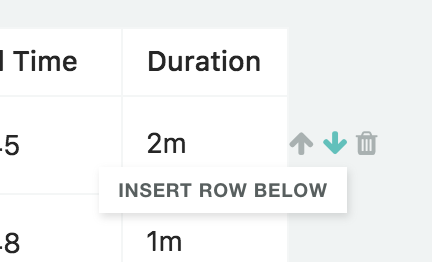
You can also delete an entire entry with the trash icon.
Editing time track data for a completed task
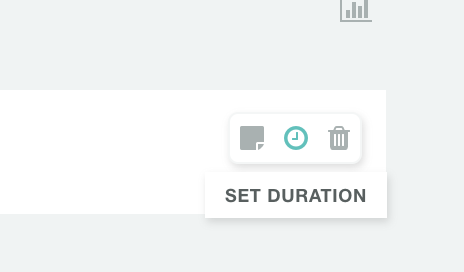
To edit the time track data for a completed task, click the clock icon:
You can also click the tracked time shown under any task to open the same table.
Time Track Statistics
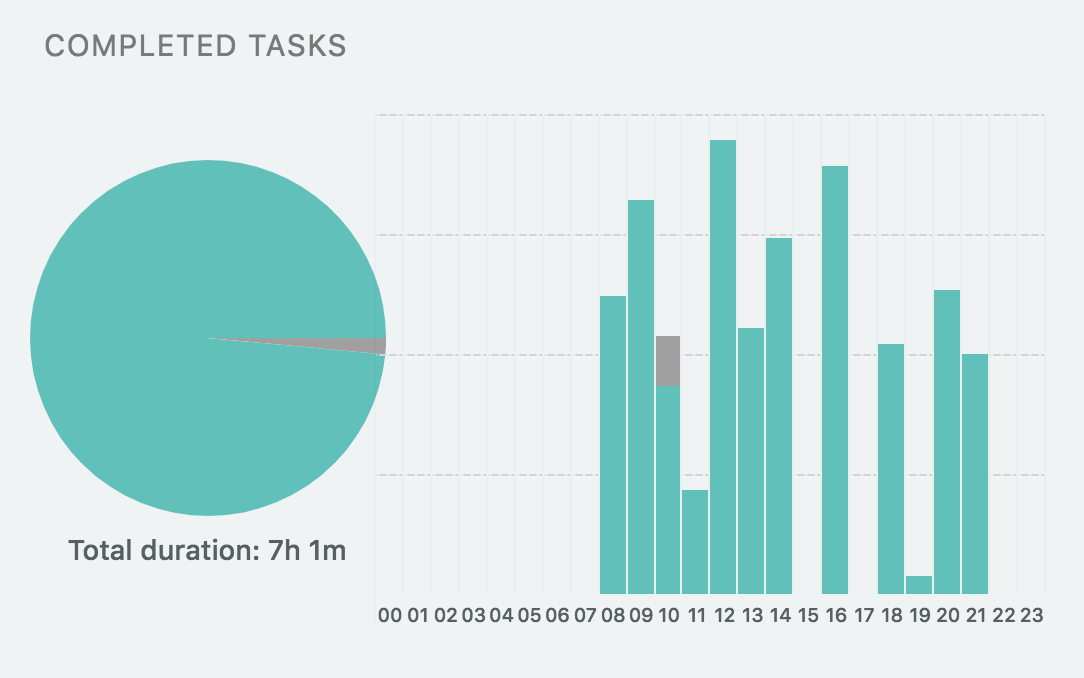
In your day view in the "Completed Tasks" sections you can see a breakdown of your time tracked for that day.
Pie Chart
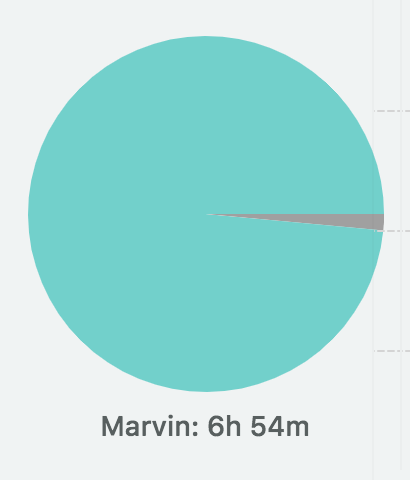
On the left you can see the time total and a pie chart breakdown based on your main categories.
You can hover over the individual slices to see the total for that category.
Graph Chart
On the right you see the time you tracked for each hour throughout the day.
Hovering over a column shows you the amount of time worked in that hour.
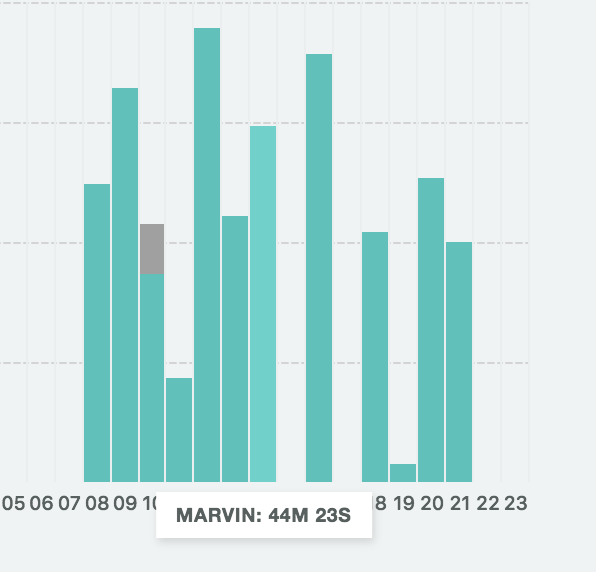
This is helpful to see patterns of activity/inactivity over the day.
Comprehensive Time Track Stats
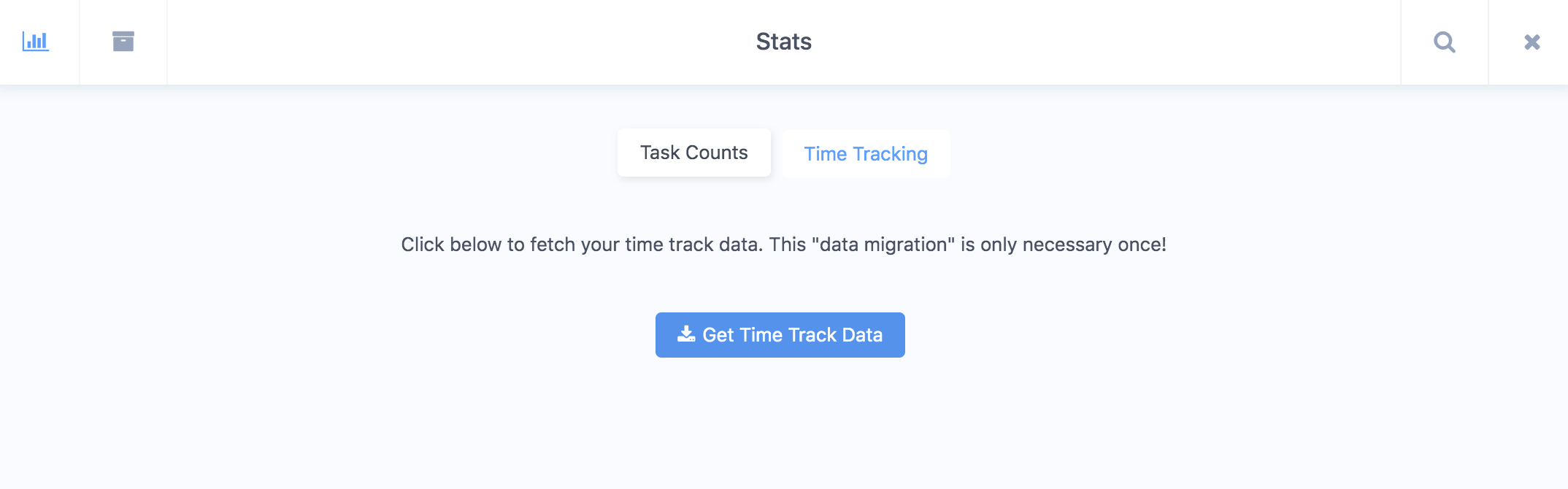
If you need to see how much you worked over a certain period of time, open the main menu and click Time Tracking Stats.
The first time you open it, click the button to download your time track data from our server.
Pick a period (Today, Yesterday, This week, Last week, This month, Last month) or choose your own start and end dates. You'll see your total time, how it compares to your estimates, sessions, active days and top category, plus a 24-hour timeline, a breakdown by day and by category, and a detailed table.
Screenshot to add: The new Time Tracking stats dashboard
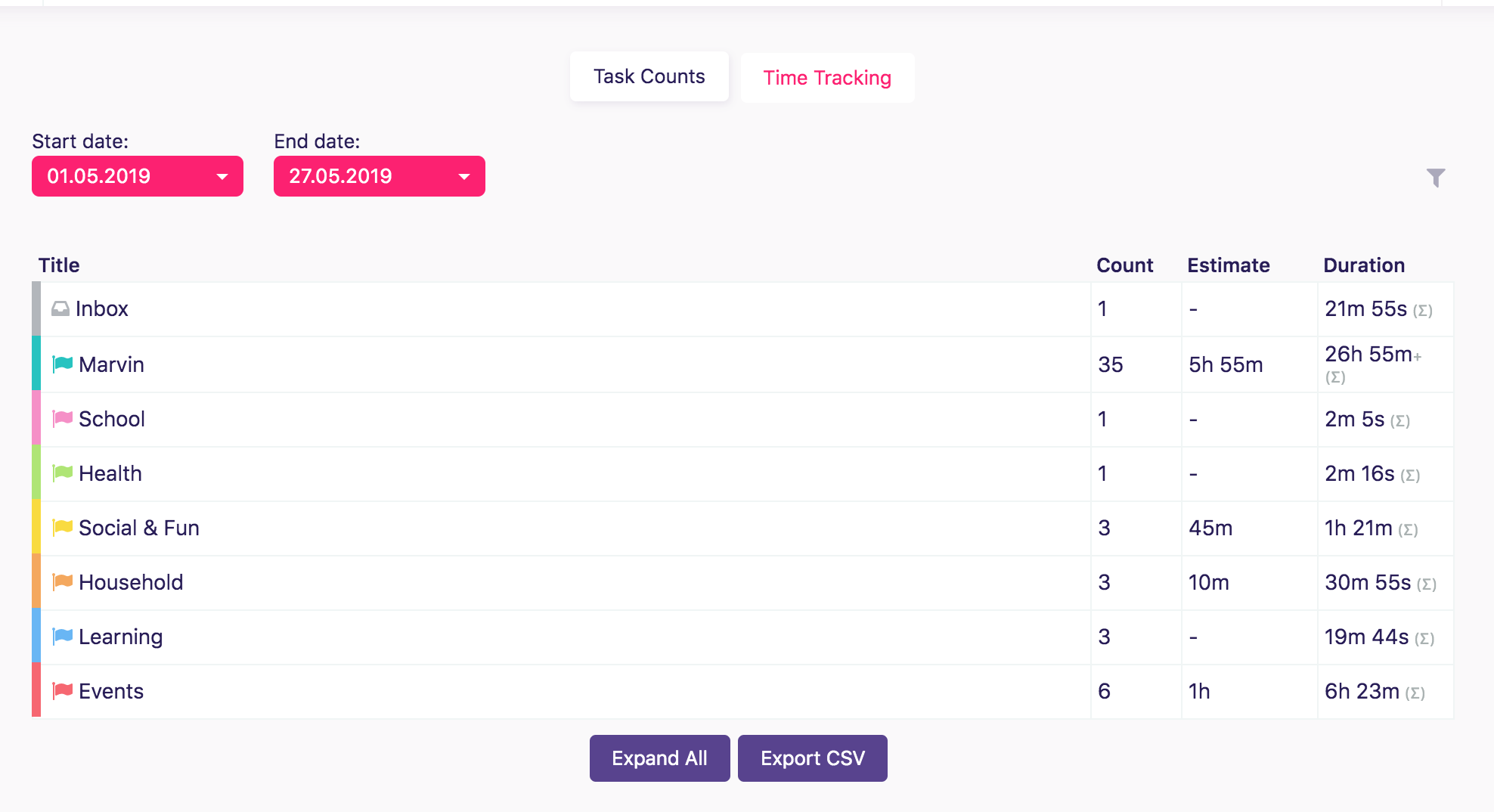
Use the filter icon to narrow things down, and click Export CSV in the Detailed breakdown table to export your data.