This fullscreen view is incredibly practical when outlining a project as you can quickly add subprojects and tasks and order them. Think of it as "zooming in" on a project or category.
Here the project "Matrix" is open in the fullscreen view.
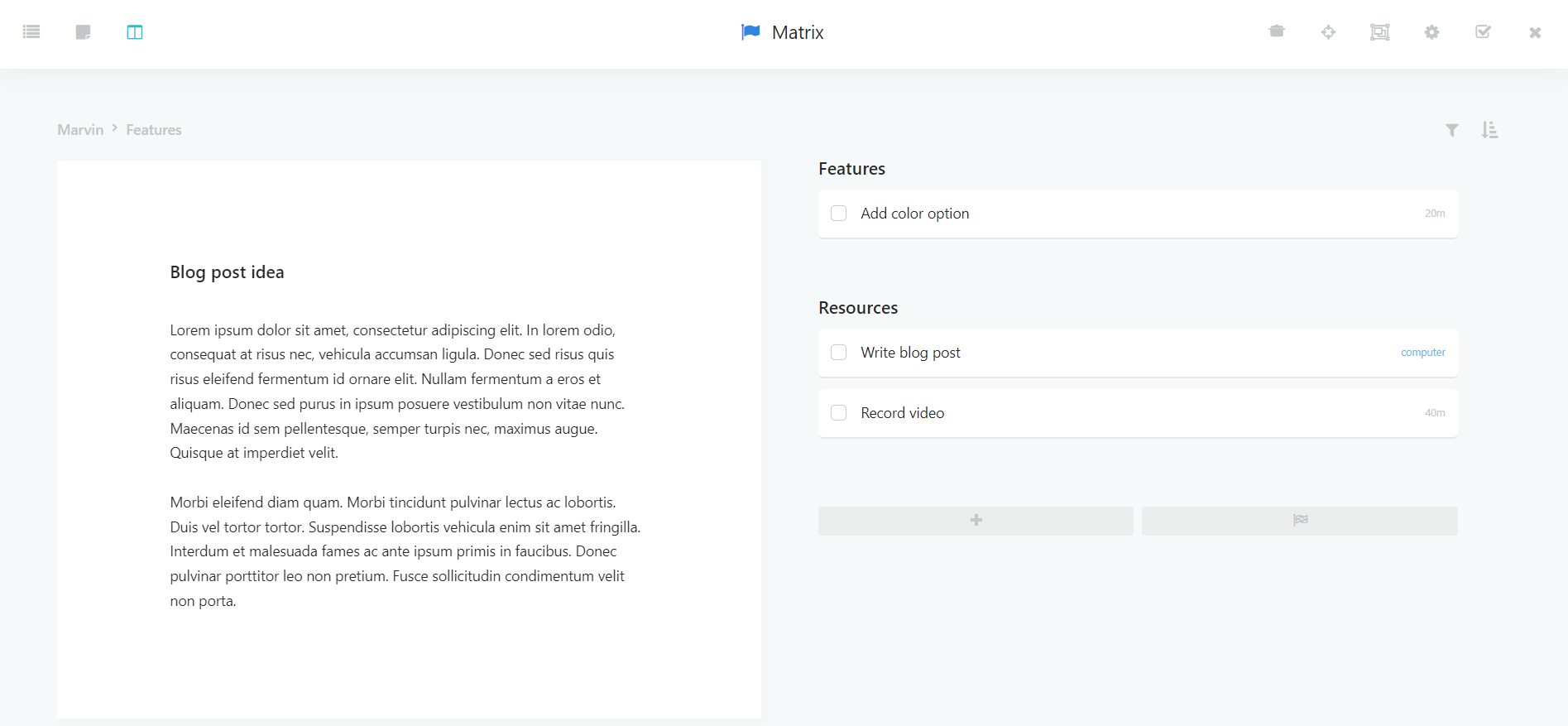
You can use the note to brainstorm some thoughts or paste in references and links that you will need to complete this project.
Many users also like to work directly from this view.
Opening the fullscreen view
There are a few ways to get to the fullscreen view.
Clicking the category context label
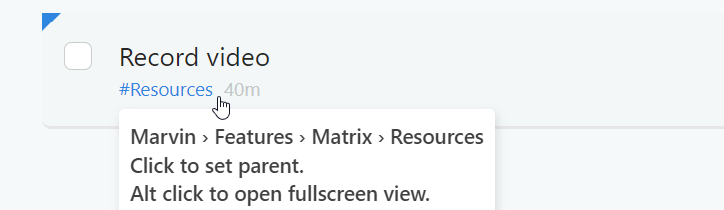
Alt/Option-clicking the category context label underneath a task (if the Category Context strategy is turned on) takes you to the fullscreen view.
Clicking project radials
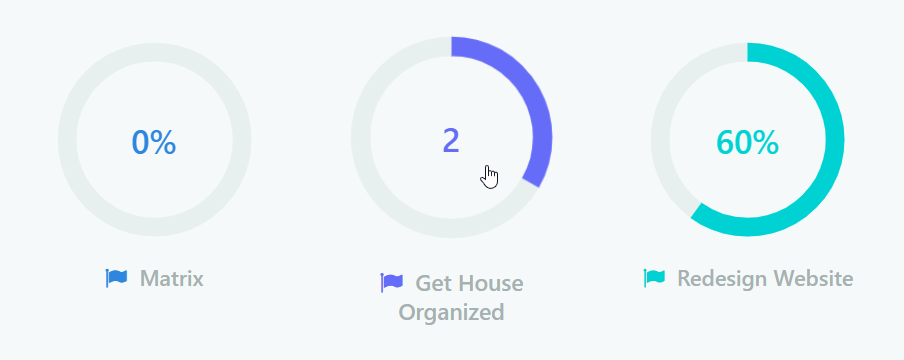
Anytime you click on a project radial it will take you into the fullscreen view.
Using the "project open" shortcut
Press shift + spacebar on your keyboard to open the Quick Jump menu and start typing the name of the project you want to go to:
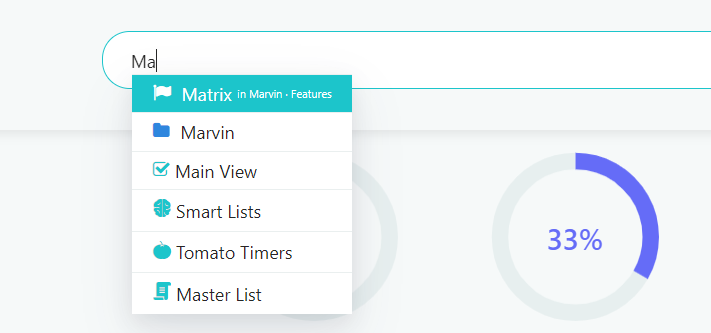
Selecting a project/category will take you to the fullscreen view.
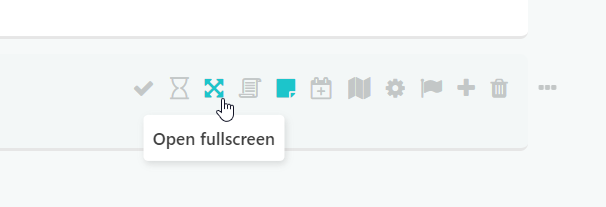
Using the "Open fullscreen" hover/right-click button
View modes
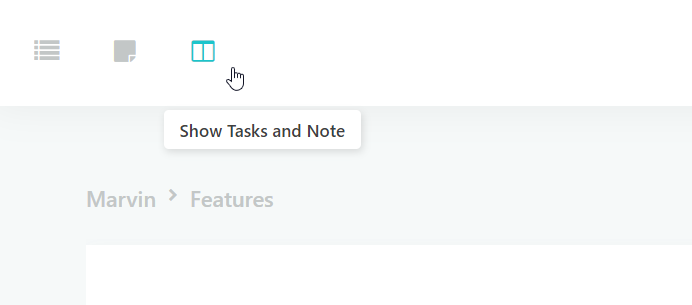
You can choose from three view modes:
Switch between those views with the buttons on the top left or use the keyboard shortcuts (L and N).
Editing the project
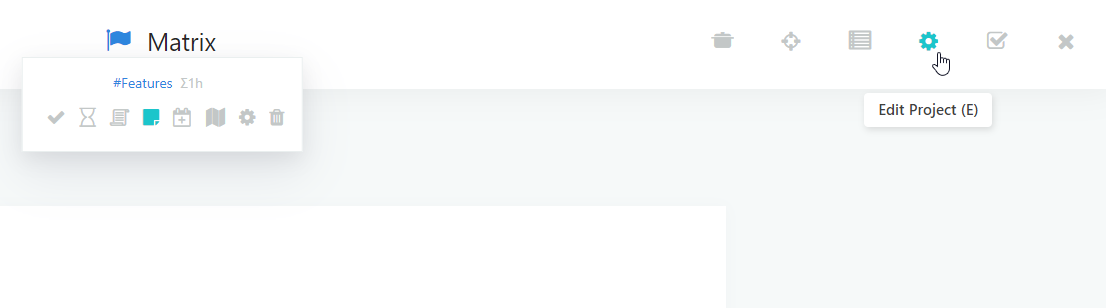
You can edit attributes of an open project by pressing the edit button and then using the regular mini buttons to make changes to the project.
You can also click the title and add attributes there (with the task input shortcuts)
Outline view
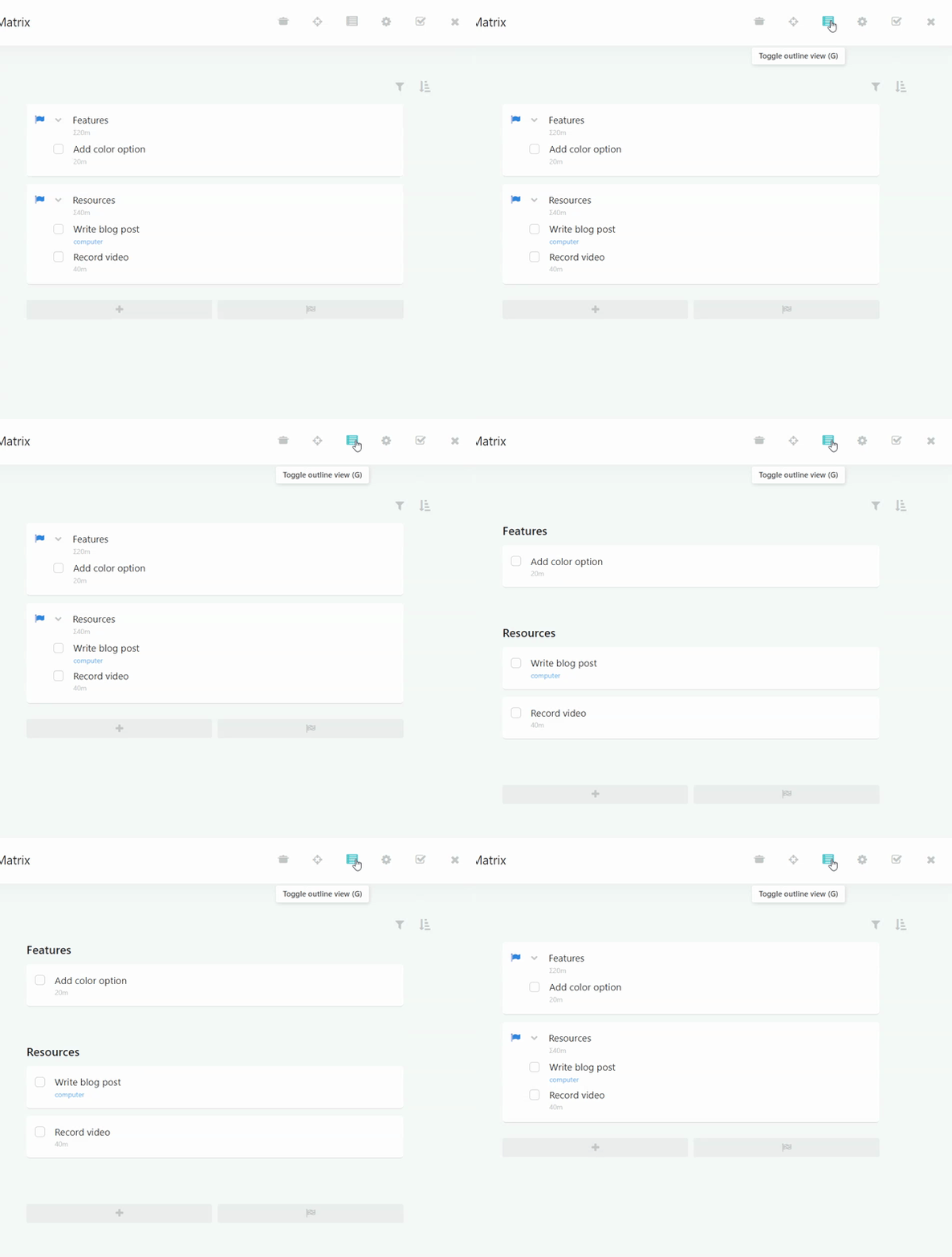
Clicking on the "Outline view" icon will group turn project and subcategory names into subtitle and group tasks underneath them.