Smart Lists are lists that automatically get created based on some predefined criteria.
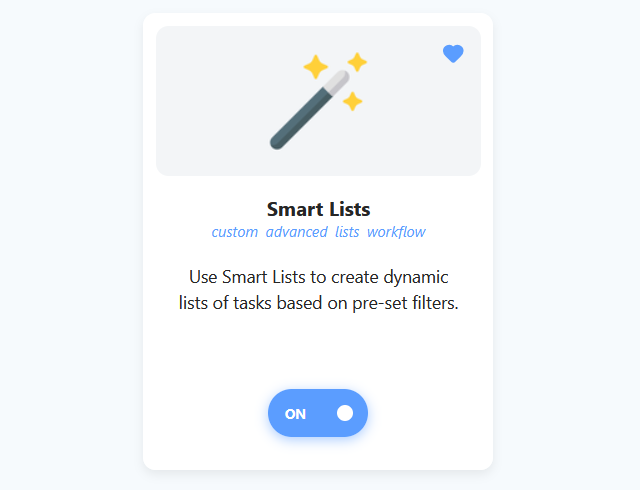
Turn on the Smart Lists strategy in ☰ → Features/Strategies to start using Smart Lists.
Smart List Examples
You might want to have a list where you see every task that is due within the next 7 days.
Or you might want to have a list of every project that currently has a priority 3 (red star) AND is due within the next 30 days.
Premade lists
Marvin also comes with premade smart lists, for example by priority, time estimate or energy. You find them on the Lists page under the Lists tab, next to My Smart Lists.
To hide premade lists you don't need, click Choose which lists show here and click the eye on a list. Click the eye again to bring it back. Lists you hide here are hidden in the mobile app too.
How to create a Smart List
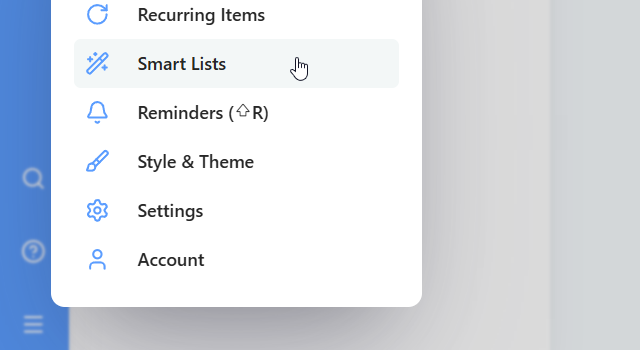
To set up a Smart List, open the main menu (☰) and click Smart lists. This opens the Lists page on the My Smart Lists tab.
Click Add Smart List at the bottom to open the Smart List configuration dialog.

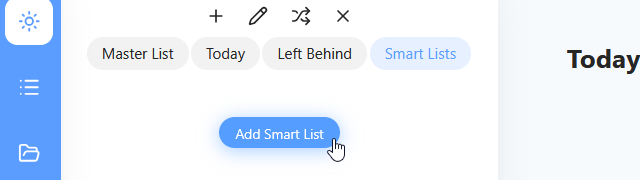
Alternatively, you can also click on the "Smart Lists" tab in the sidebar anywhere and create a new Smart List from there by clicking the "Add Smart List" button.
How to configure your Smart List
First give the Smart List a name at the top.
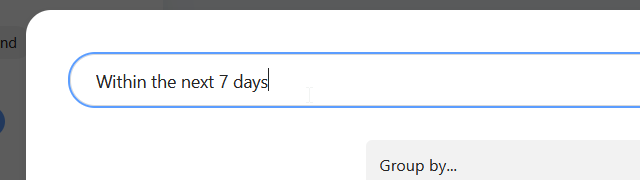
Then select filter criteria in the left column under "Filters:".
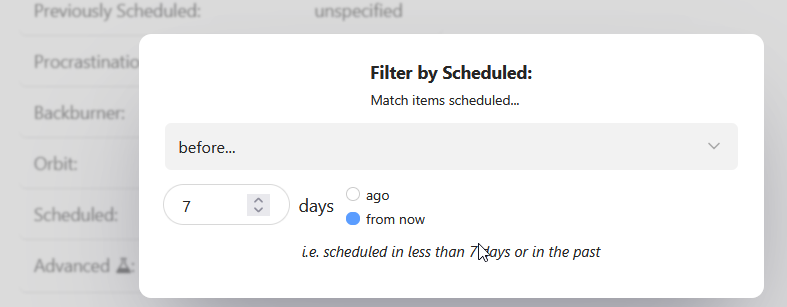
Click on a filter you want to use for this Smart List and configure it by picking an option from the drop down menu:
How to add multiple filters
You can select as many filters on the left as you need. The resulting Smart List has to match ALL the filters you set.
So if you select "tasks", "due within 7 days" and "in category Household" it will make a list of just tasks that are due within 7 days AND in the Household category.
How to add multiple filters of the same type
For example, if you want to create a Smart List that has a label @home AND a label @quick you can set this up with an advanced filter. The advanced filter option is at the very bottom.
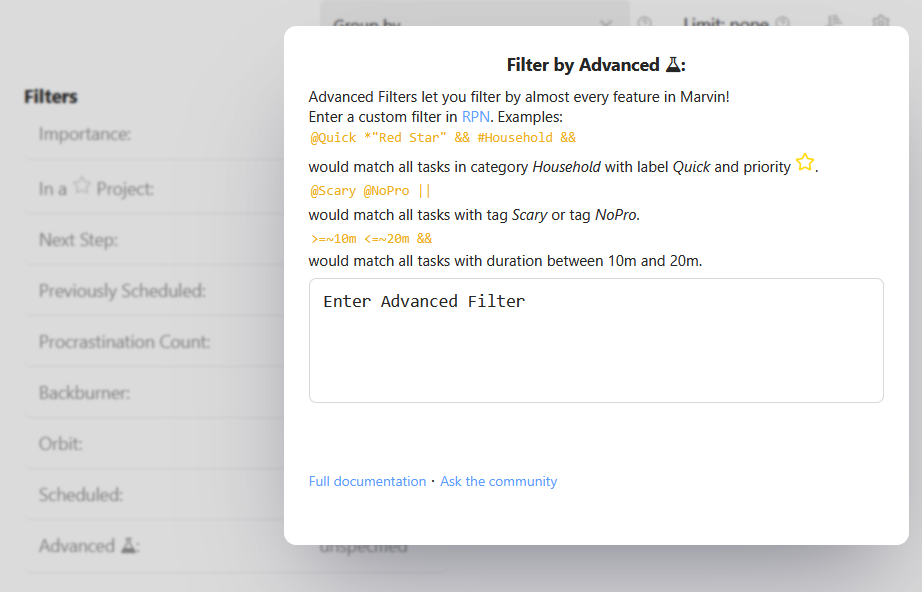
To set up an advanced filter you add your specifications in a specific format (RPN) using the Marvin shortcuts to describe properties of tasks.
For the example above you would write
@home @quick &&
How to make Smart Lists that are either this OR that
If you want to make a list of items that matches just one of several filters you specify, you can do that setting up an advanced filter. (see previous paragraph)
We also suggest reading this in-depth guide on how Smart List logic works.
Make sure to save your Smart List before closing the dialog!
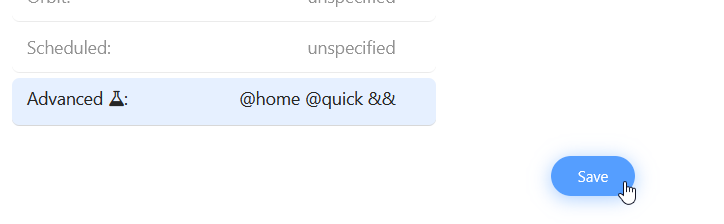
Click the save button at the bottom right to create your Smart List or save any changes you made to it.
Missing a Smart List filter?
There are still some Smart List filters on our to-do list we want to add. Write us if you are missing anything in particular and we can fast track it for you.
Removing a filter from a Smart List
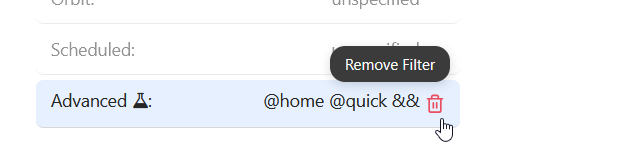
If you selected a filter and want to remove it, click on the first dropdown chooser (colored button with dropdown) and set it to "unspecified" and save it. Or just hover over the filter and click on the trash icon.
Deleting a Smart List
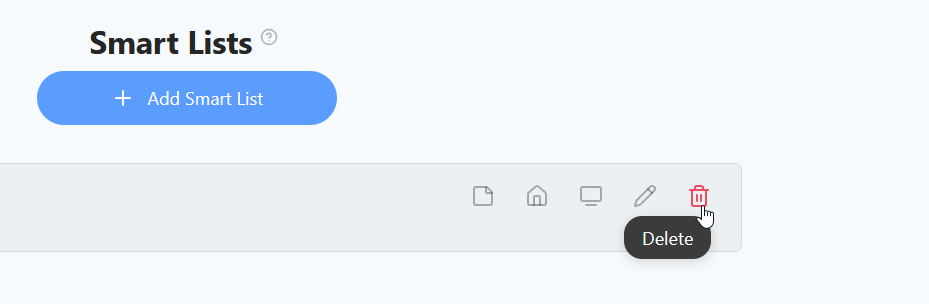
You can delete a Smart List anytime on the My Smart Lists tab of the Lists page: click the trash icon next to the list and confirm.
Once deleted there is no way to recover the filter settings. But no worries, none of the actual items (tasks/projects) get deleted when you delete a Smart List. You are just deleting the "filter setup".