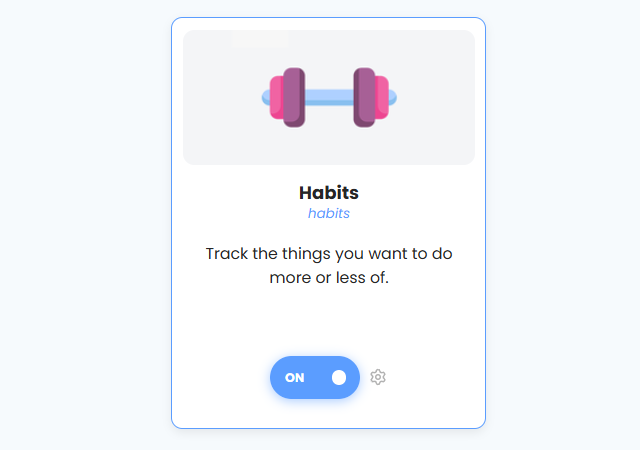
The habits strategy gives you a habit tracker right inside Marvin next to your to-do lists. Whether you want to run 30 miles per week, floss daily, or spend no more than 30 minutes on social media per day, you can track these as a habit to make sure you are not straying too far from your ideals. All your open habits will be shown in your day view so that you can record them easily.
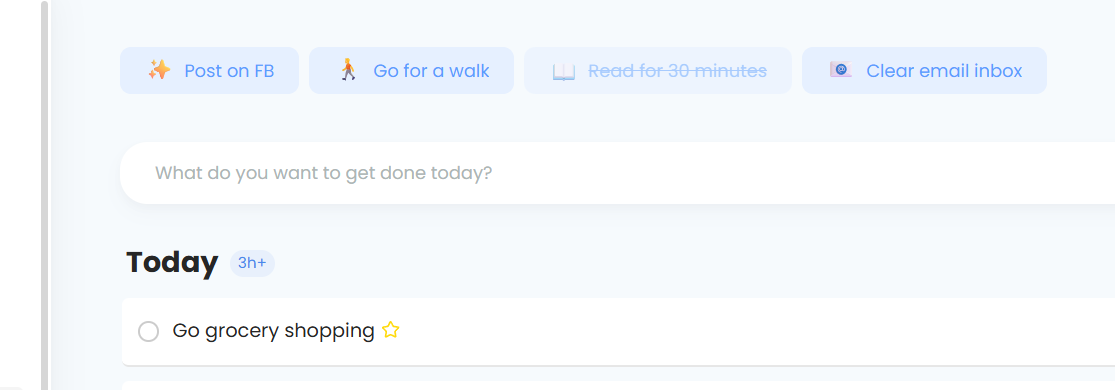
If you have habits set up as recurring tasks, we recommend switching them to a habit. Habits have more helpful stats, the ability to easily record in the future or past, and give you much more control for when they should and shouldn't show in your day. It also keeps your task list more focused.
Turning on Habits and accessing them
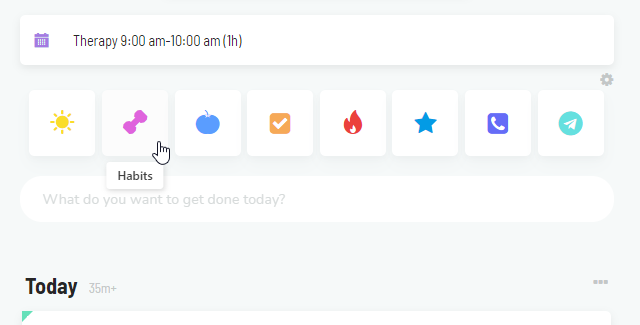
To turn on Habits, go to ☰ → Features → Habits. When you turn it on, you will be asked how you want to access Habits.
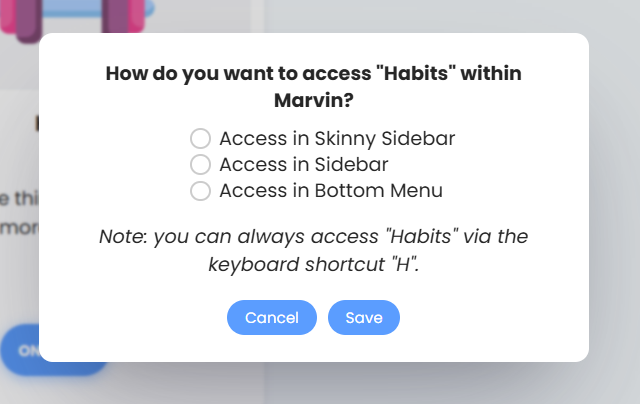
Keep in mind that you can always access them by pressing "H" on your keyboard, and additionally, you can add them to Custom Text Links, or Custom Squares.
Creating a habit
To create a habit, open the Habits page and click Habit at the bottom of the list (or Add a habit if you have none yet). A short step-by-step guide walks you through it. To add several habits quickly, click Quick Add and type them in plain language, like "Drink tea daily" or "Run mon/wed/fri", pressing Enter after each one.
Habit type
The first step asks what you'd like to do. Right now new habits use Just track it. Build something and Reduce or quit are marked Coming soon. Habits you already set up as building or quitting habits keep working as before.
The difference between the two is that habits you're trying to build need to be recorded at least a certain amount of times during the specified period, while habits that you're trying to quit should be recorded that many times at most. For example, you might want to build the habit of going to the gym at least 3 times per week, or you might want to quit the habit of drinking soda by drinking no more than 10 cans per month.
Period

Here you choose the time period over which you want to track the habit. For example, if you choose to have a weekly habit, then your progress on a habit will be measured for each week.
Target
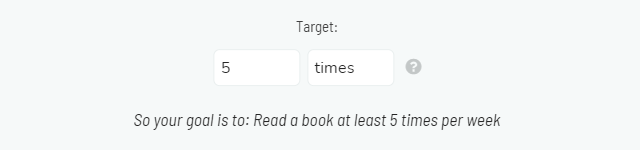
Here you define how many times you want to work on your habit over the specified period. You're free to set a custom unit name too. For example, you could rename "times" to "minutes" but in that case, it would also make sense to change the target value accordingly. Say you want to walk 5 miles 4 times per week. In that case, you could set up your habit in one of the two ways:
If you choose the second approach, you'll probably want to set Click to add to Ask me. That way you'll be asked to enter how many miles you walked. So one day you can enter 5 miles, then enter 6 for the next two days, and on the last day of the week enter 5 again. The total for the week would be 22 which means you successfully completed the habit for that week.
When/where Marvin prompts you to record the Habit
On these days

Under More options (target, specific days), pick the days this habit is open. Leave all days selected for every day. You can still record a habit on other days from the Habits page.
Optional time range - do between
Here you can choose during which time you'll see the habit in your day view. Keep in mind that it will only be shown during that time, if specified! You find it on the Advanced tab when you edit a habit.
Auto-hide settings

Hide after habit success: as soon as you reach your target, the habit will disappear from the Today view. You might want to turn this off if you intend to work on your habit more than what the target is.
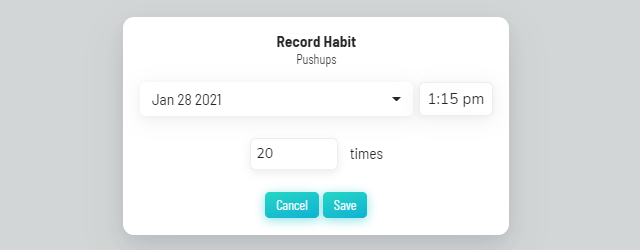
Hide for the day once recorded: this option is only for non-daily habits. It hides the habit from the Today view as soon as you record it, regardless of how much you worked on your habit. So if you have a weekly habit, for example to track how many pushups you did during the week, you might want to turn this off. Having it on would mean that it would disappear for the rest of the day if you recorded a set of pushups in the morning.
Show as
Choose where the habit shows up. You can pick as many as you like:
As a task: the habit becomes a recurring task in your day list on the habit's days. Reorder it, schedule it or add it to the jar like any other task. Checking it off counts as doing the habit.
Top of the day: a row of habits above your lists.
Bottom bar: a quick pill in the bottom bar.
Calendar: also shows the habit in your calendar. Set a time under In the calendar, show at, or leave it empty to show it as an all-day item.
To change this for all your habits at once, use Show all habits as in the Habits settings. Show new habits as sets where new habits show up.
Optional Details
Settings that you can find here (Category, Labels, Priority, and Frogs) are just used for when you want to group your habits. As previously mentioned, the duration is used to define the length of the Habit element in the Calendar.
Click to add

This option is on the Advanced tab when you edit a habit. When it's set to One, each click records the habit once. So if your habit is to "Go for a walk", recording it adds one. If your habit is to "Do 50 pushups", set it to Ask me, and you'll be asked how many pushups you did each time you record it.
Reminders
On the Reminders tab of a habit you can turn on Send reminders to my phone and Notify me on desktop and web, pick the times, and turn on Bug me to keep reminding you.
Stats
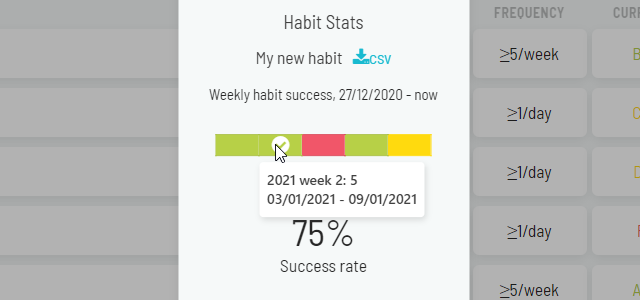
Analyzing stats can be super useful for tracking your progress and seeing that you're on a streak can make the difference between completing a habit and skipping it.
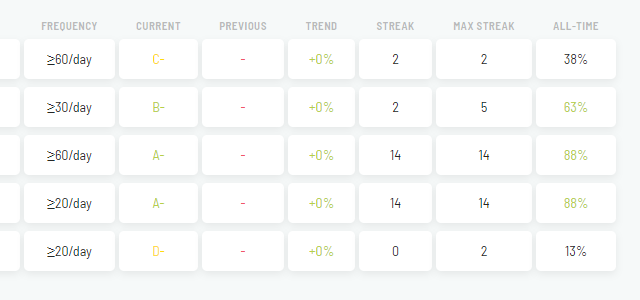
The column on the left that has smileys is used as an indicator of how you've been doing over the recent past. For daily habits this is over the last 1-4 days. If you are successful it tends to be in the green 😀, but if you don't do it a couple days in a row it will go down to yellow 😐 and then red 🙁. But once you do the habit you can get it quickly back up to yellow/green.
Grade columns - These are ranked from A-F and are used to let you keep track of how you're doing now compared to how you were doing last month. Mark explains this in much more detail in this article.
Trend - shows improvement in your score in percentage between the last 30 days and 30 days before that.
Streak - the number of consecutive successful periods (where periods are aligned with the calendar). So if you say you want to do something 4 times per month but start on the 2nd to last day of the month, it's quite likely you'll fail the first month!
All-time - the all-time success rate.
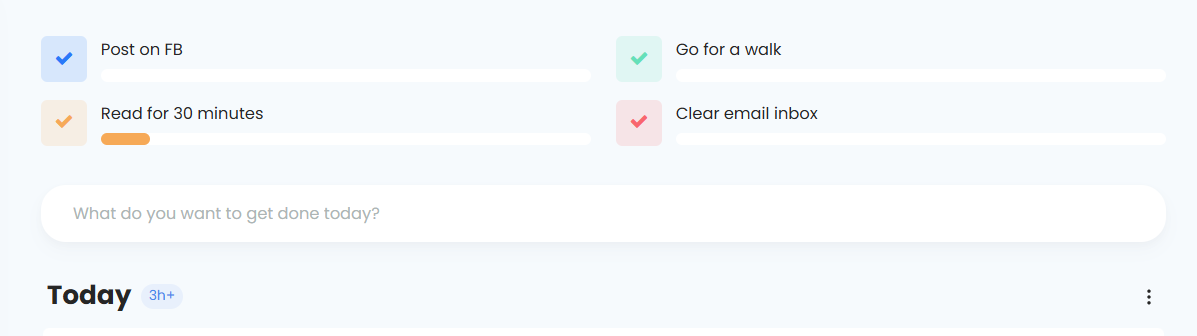
Displaying habits as a progress bar

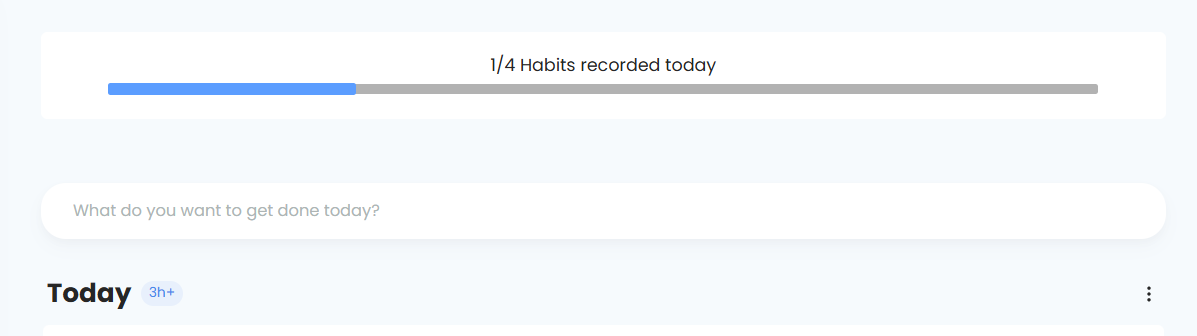
To show all your habits for the day as a single progress bar, go to ☰ → Features → Habits settings and turn on Day view: one bar for all habits.
Click the bar to open the Habits page, where you can record them.
Recording a habit for previous days
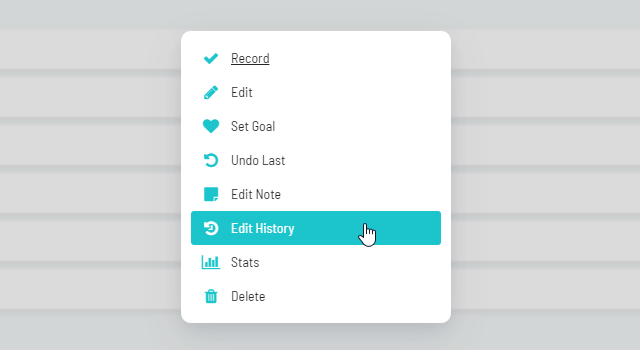
If you forget to record a habit, just go to the Habits screen and click on the habit you forgot to record. Then you can click on the "Edit History" button and enter the value for that day.
Best weekday
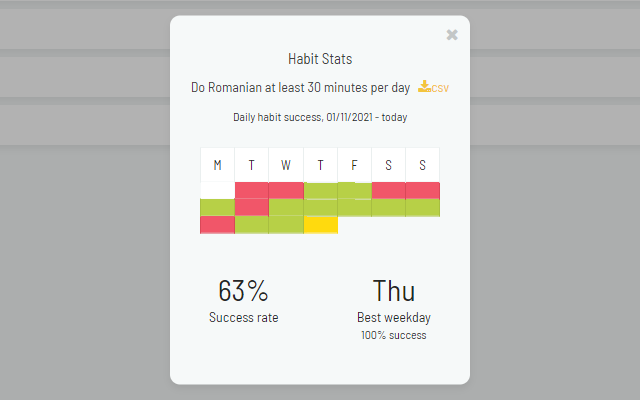
By clicking on the "Stats" button, you get to see which is the best weekday for the selected habit (for daily habits).
Habit Display Style
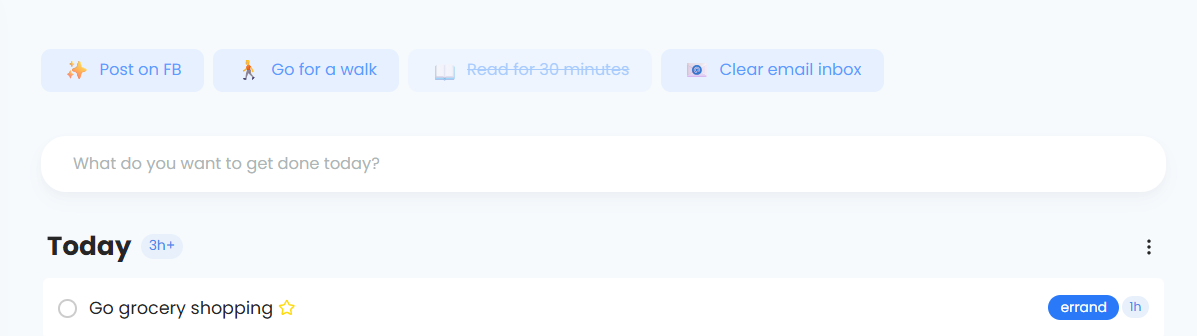
Click the cog next to the habits in your day view and choose a Look: Default, Compact, Task rows or Progress bar. You can also change this in ☰ → Style, under Habits.
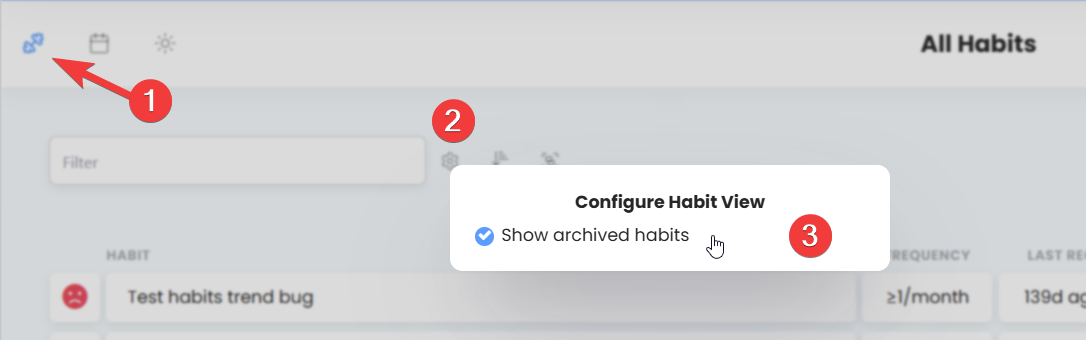
Displaying Archived habits
To see archived habits, open the Habits page, click View options (the sliders icon) and set Archived habits to In this list.