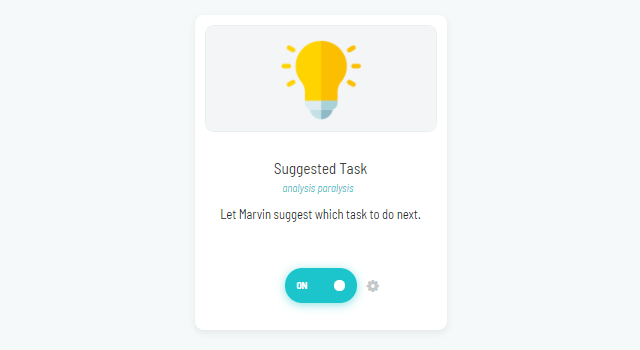
Figuring out which tasks we should do next is not always an easy decision.
If this strategy is turned on, open the ⋯ menu at the top right of your daily list, or any Smart List you have in your day view (via the custom sidebar or custom squares for example), and click Suggested. Marvin pops up the task he thinks you should do next.
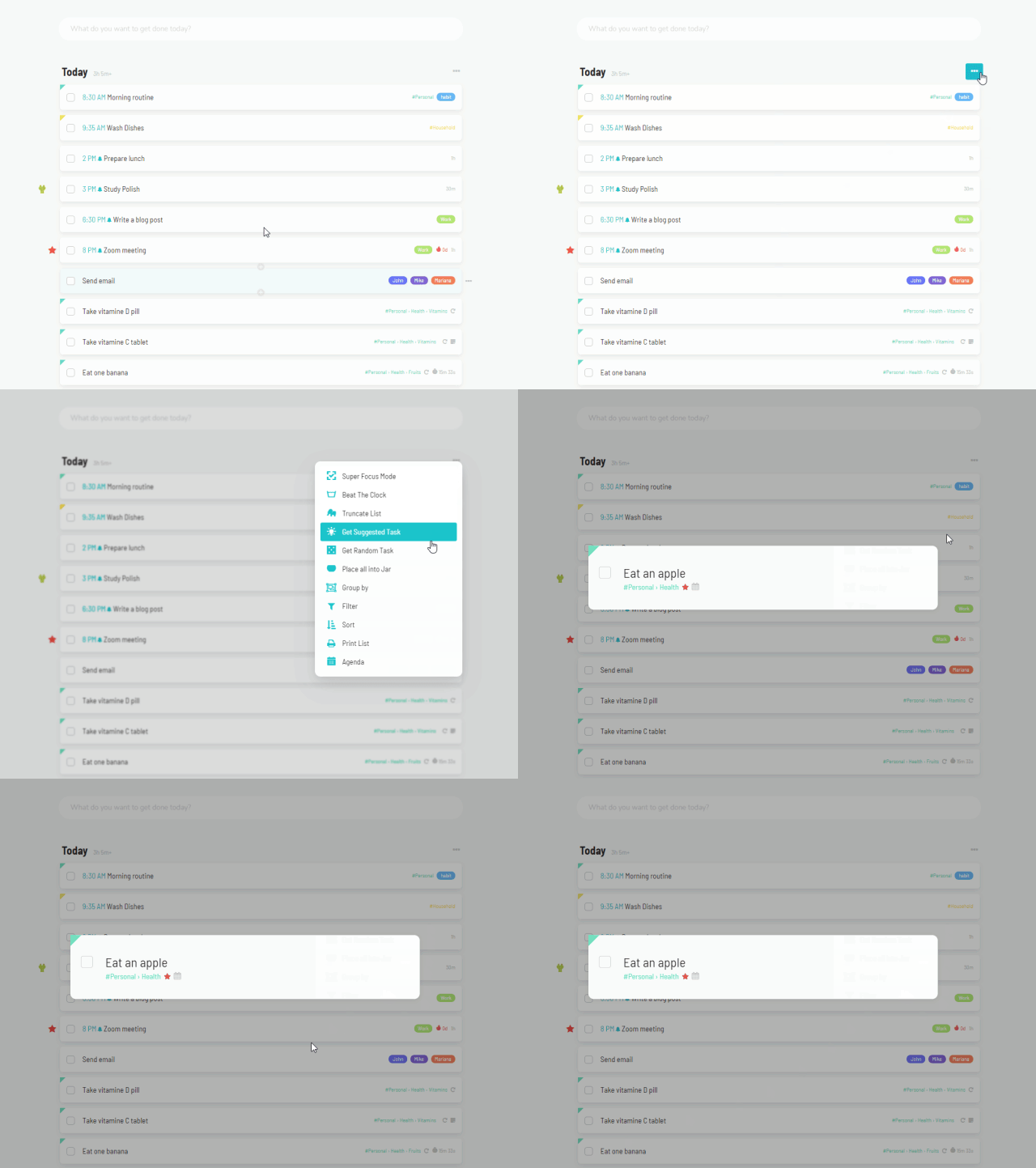
He takes many factors into consideration, but his exact thought process is a secret. He will get smarter over time, giving you better and better suggestions.
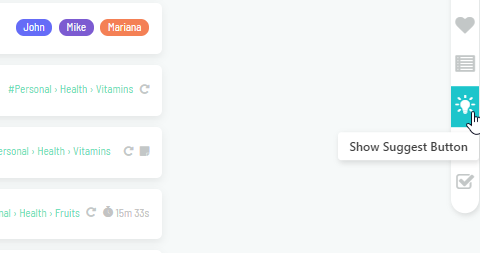
Big suggestion button
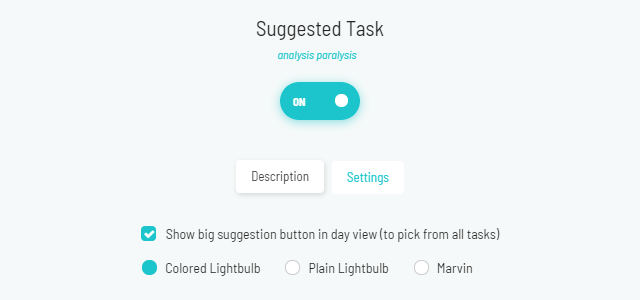
In the strategy settings, turn on Show big suggestion button in day view (to pick from all tasks) to get a suggested task even faster. You can then pick a Suggestion Style: Colored Lightbulb, Plain Lightbulb or Marvin.
And here's how those 3 buttons look like:
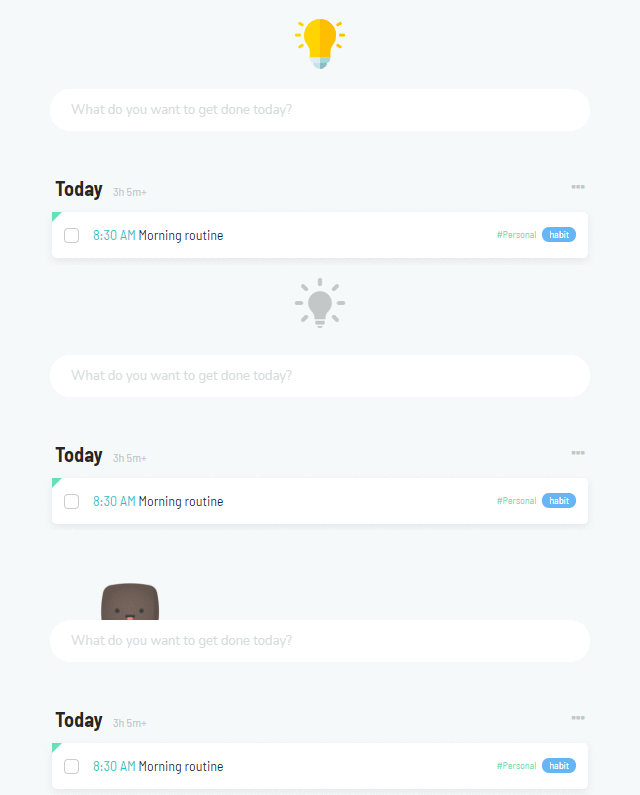
If you have one of these selected and it's not showing up in your day view, make sure that it's not hidden.
How the task opens
In the strategy settings, use Task Display Mode to open the suggested task as a Single Task or in Super Focus Mode. Turn on Auto-start time tracking on picked task to start the timer right away.