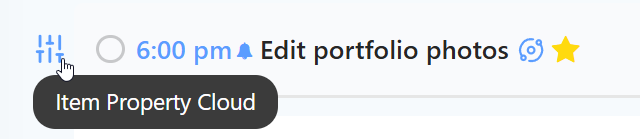
The Left Button strategy adds a clickable icon to the left of your task's checkbox. By default, this button opens the Item Properties menu, allowing you to quickly set multiple attributes, like Urgency, Weight, or Energy levels, in a single click.
How to enable
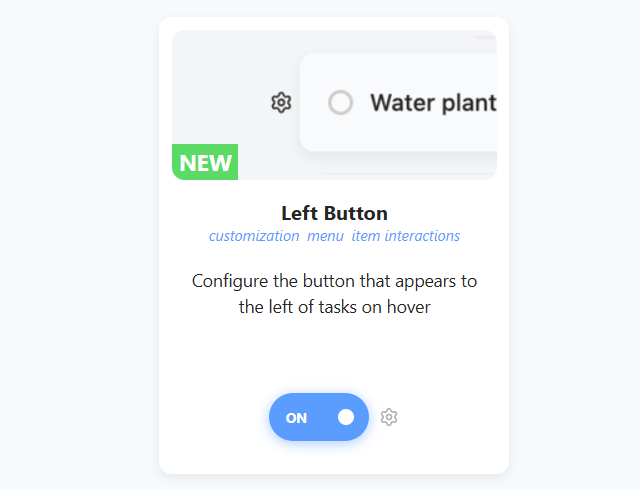
To enable this strategy, go to ☰ → Features/Strategies → Left Button
How to use
When you hover over a task or project, you will see a small icon appear to the left of the checkbox.
Default Behavior: Item Properties
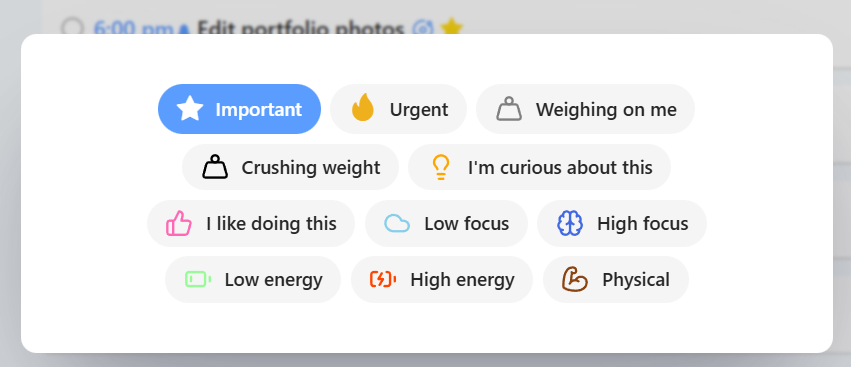
By default, clicking this button opens the Item Properties dialog. This is especially useful for the new property strategies (Urgency, Weight, Positive Feelings, Energy) because it lets you toggle all of them from one convenient place without digging into menus.
Settings
You can customize how this button works in the strategy settings:
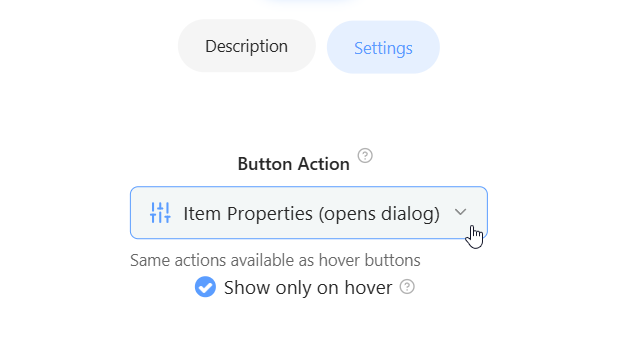
Button Action: choose what the button does. The default is Item Properties, but you can pick any action that is available for hover buttons.
Show only on hover: when on, the button only shows while you hover over a task. Turn it off to always see it.
Why use this strategy?
This is the most convenient way to manage the new Item Properties (Urgency, Weight, Positive Feelings, Energy). Instead of remembering separate shortcuts or menus for each property, you can click one button to see and adjust the state of your task's "vitals" all at once.